
How do work types, pay multipliers and billable hours work?
Short answer
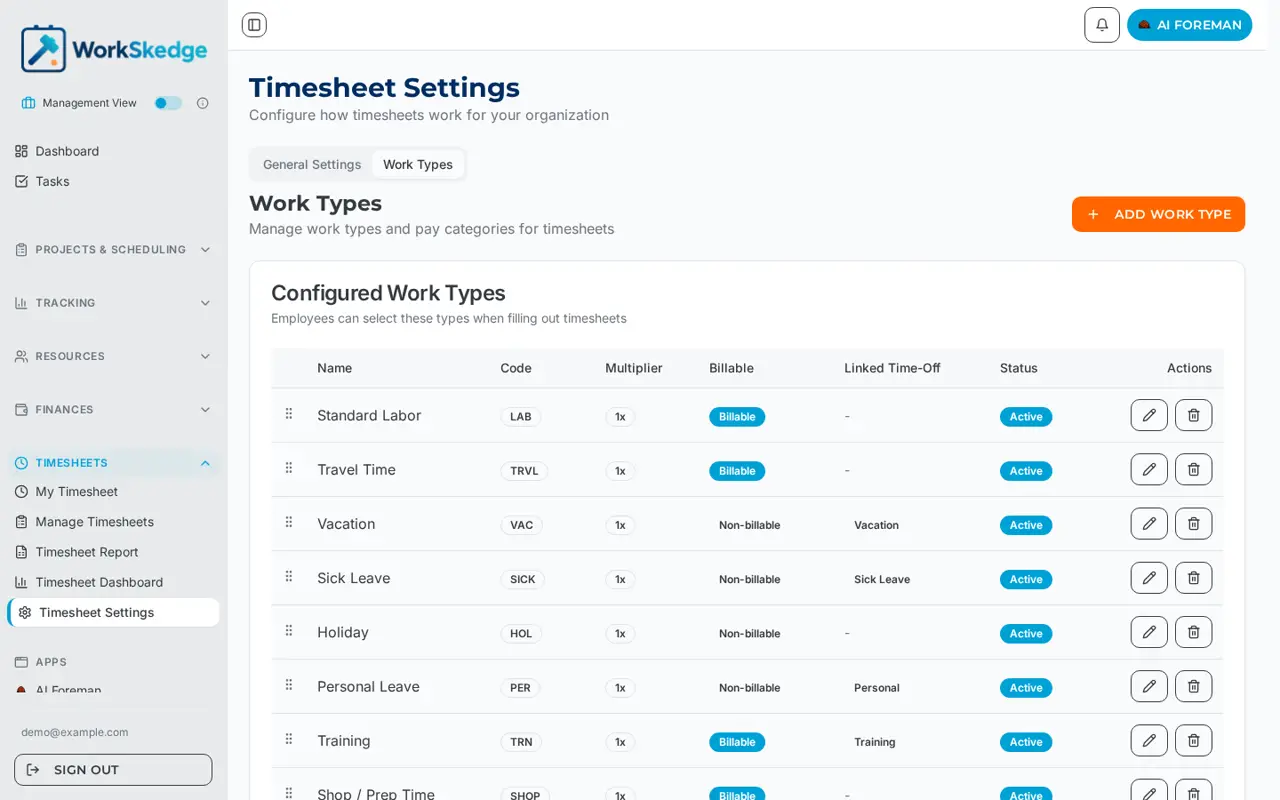
Work types are the categories crews pick when logging hours — Standard Labor, Travel Time, Overtime, Vacation, Lunch Break and so on. Each one carries a short code, a pay multiplier, a billable flag, an optional linked time-off type, and can force a work order to be selected. They are managed on the Work Types tab of Timesheets > Settings.
On this page
Steps
- 1Open Timesheets > Settings and select the Work Types tab.
- 2Click Add Work Type and enter the name and short code.
- 3Set the pay multiplier — 1x standard, 1.5x overtime, 0x for unpaid breaks.
- 4Set Billable if hours on this type can be charged to a customer.
- 5Tick Requires Work Order if entries must be tied to a work order.
- 6Link a time-off type if the work type represents vacation, sick or personal leave.
- 7Drag rows with the grip handle so the most used types appear first.
What a work type controls
| Field | Purpose |
|---|---|
| Name (required) | What the employee sees, e.g. "Overtime". |
| Short Code | Short label used in grids and exports, e.g. OT. |
| Multiplier | Pay multiplier — 1x standard, 1.5x overtime, 0x for unpaid breaks. |
| Linked Time-Off Type | Ties the work type to a time-off category so approved time off maps to it. |
| Billable Work Type | Whether hours logged against it can be billed to the customer. |
| Requires Work Order | Forces the employee to select a work order on entries of this type. |
| Active | Inactive types stay on historical timesheets but can no longer be chosen. |
A typical set-up
A standard configuration looks like this:
| Work type | Code | Multiplier | Billable |
|---|---|---|---|
| Standard Labor | LAB | 1x | Billable |
| Travel Time | TRVL | 1x | Billable |
| Training | TRN | 1x | Billable |
| Shop / Prep Time | SHOP | 1x | Billable |
| Vacation | VAC | 1x | Non-billable |
| Sick Leave | SICK | 1x | Non-billable |
| Holiday | HOL | 1x | Non-billable |
| Personal Leave | PER | 1x | Non-billable |
| Unpaid Leave | UNP | 1x | Non-billable |
| Lunch Break | LUNCH | 0x | Non-billable |
Overtime is handled by adding a work type with a 1.5x (or 2x) multiplier and having the crew log the overtime portion against it. The multiplier and billable flag both appear on the timesheet and payroll exports, so overtime pay and customer billing stay separated.
Managing the list
Use Add Work Type to create one, the pencil to edit, the trash icon to delete, and the grip handle to drag rows into the order employees see. Put the types your crews use most at the top.
Delete is permanent. If a work type already appears on historical timesheets, mark it Inactive instead — the record stays intact on past sheets but disappears from the dropdown.
How this affects billing and payroll
- Billable work types drive what can be pulled onto a customer invoice — see Pull POs, labour and materials onto an invoice.
- Multipliers and billable flags are columns on the payroll and timesheet exports — see Export timesheets and run payroll.
- One work type can be nominated as the break work type on the General Settings tab, which is what automatic break entries are logged against.
Frequently asked questions
How do I set up overtime?
Create a work type with a 1.5x (or 2x) multiplier and have crews log the overtime portion of the day against it. The multiplier carries through to the payroll export.
What should the multiplier be for unpaid breaks?
0x. That is how the standard Lunch Break work type is configured, so break time is recorded without being paid.
Can I delete a work type we no longer use?
Only safely if it has never been used. If it appears on historical timesheets, mark it Inactive instead — deleting is permanent.
How do I stop hours being logged without a work order?
Turn on Requires Work Order for that work type. The employee must select a work order before the entry can be saved.
Was this article helpful?
Still stuck?
Send us the article name and what you expected to happen.
Last verified August 31, 2026