
How do I set up timesheets (entry mode, breaks, rounding and reminders)?
Short answer
Timesheets are turned on in Settings > Workflow > Features, then configured at Timesheets > Settings. There you choose whether crews enter total hours or time in / time out, set automatic breaks, pre-fill from the schedule, pick a rounding interval and set the reminder schedule.
On this page
Steps
- 1Open Settings > Workflow > Project & Work Order Rules > Features and enable Timesheets & Time Tracking.
- 2Go to Timesheets > Settings and click Activate Timesheets, choosing the start date tracking begins.
- 3On the General Settings tab, pick the entry mode: Hours, or Time In / Time Out.
- 4Set break behaviour: automatic break entries, default break time and break work type.
- 5Decide whether entries pre-fill hours from the schedule and default the work type.
- 6Choose a rounding interval — 5, 10, 15 minutes or none.
- 7Set the timesheet reminder schedule, and confirm recipients under Settings > Email Notifications.
Turn timesheets on first
Feature toggle: Settings > Workflow > Project & Work Order Rules > Features
Setting:        "Timesheets & Time Tracking"
Required:       Timesheets module in your plan + Administrator role
Settings page:  Timesheets > Settings  (Administrator or Manager)
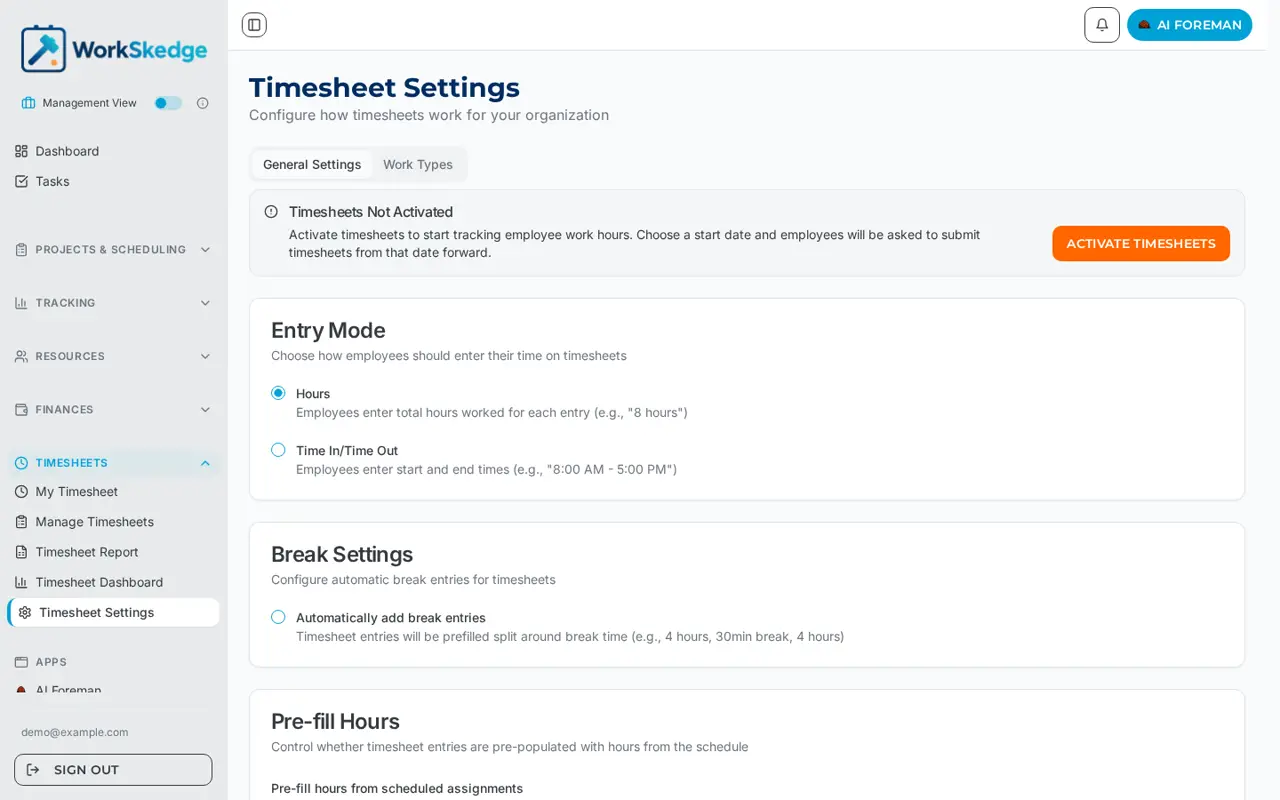
Timesheets also need a start date — the date tracking begins. Until the feature is enabled and the start date has arrived, the settings page shows a "Timesheets Not Activated" banner with an Activate Timesheets button.
General Settings
Entry Mode — how the crew logs time:
| Mode | What the employee does |
|---|---|
| Hours | Enters total hours per entry, e.g. 8 hours. Fast for regular schedules. |
| Time In / Time Out | Enters start and end times, e.g. 8:00 AM – 5:00 PM. Hours are calculated, overlaps are blocked, and the audit trail is exact. |
Break Settings — turn on Automatically add break entries and WorkSkedge handles breaks for the employee. In Time In / Time Out mode it inserts a separate break entry at the configured time; in Hours mode it pre-fills the day split around the break (4 hours, 30 min break, 4 hours). You also choose the default break time (12:00 by default) and the break work type. Break duration itself is read-only here — it comes from Business Profile settings.
Pre-fill Hours — pre-populates new entries from the employee's scheduled assignments. Turn it off if crews should start from a blank sheet.
Pre-fill Work Type — when on, entries default to Standard Labor (or the first work type in your list). When off, the employee must pick a work type before saving.
Timesheet Rounding — round entries to the nearest 5, 10 or 15 minutes, or no rounding. 15 minutes is the common choice: 8.17 hours (8h 10m) becomes 8.25 hours (8h 15m).
Timesheet Reminders — the schedule that nudges employees to submit. Who receives the emails and how they are delivered is set under Settings > Email Notifications.
Data Management — administrators only. Pick a cutoff date, click Preview to see how many timesheets and entries would be removed, then confirm by typing DELETE. This permanently deletes timesheet history and cannot be undone.
What to set before your first payroll run
- Entry mode matching how your crews actually report time
- A rounding rule everyone agrees on (payroll disputes usually start here)
- Work types with the right multipliers — see Timesheet work types, multipliers and billable hours
- Departments, if you group payroll by them, under Settings > Company > Departments
Frequently asked questions
Why does the settings page say Timesheets Not Activated?
The feature is enabled but tracking has not started. Click Activate Timesheets and choose the start date — employees are asked to submit timesheets from that date forward.
Should I use Hours or Time In / Time Out?
Hours is quickest for crews on regular schedules. Time In / Time Out gives exact start and end times, calculates the hours for you and blocks overlapping entries, which is the better audit trail.
Where do I change the break duration?
Break duration lives in Business Profile settings. The timesheet settings page shows it read-only alongside the break time and break work type.
Can I delete old timesheet history?
Administrators can, using Data Management on the General Settings tab. Preview the cutoff first — the deletion is permanent and cannot be undone.
Was this article helpful?
Still stuck?
Send us the article name and what you expected to happen.
Last verified August 31, 2026