
How do I see who changed a work order and when?
Short answer
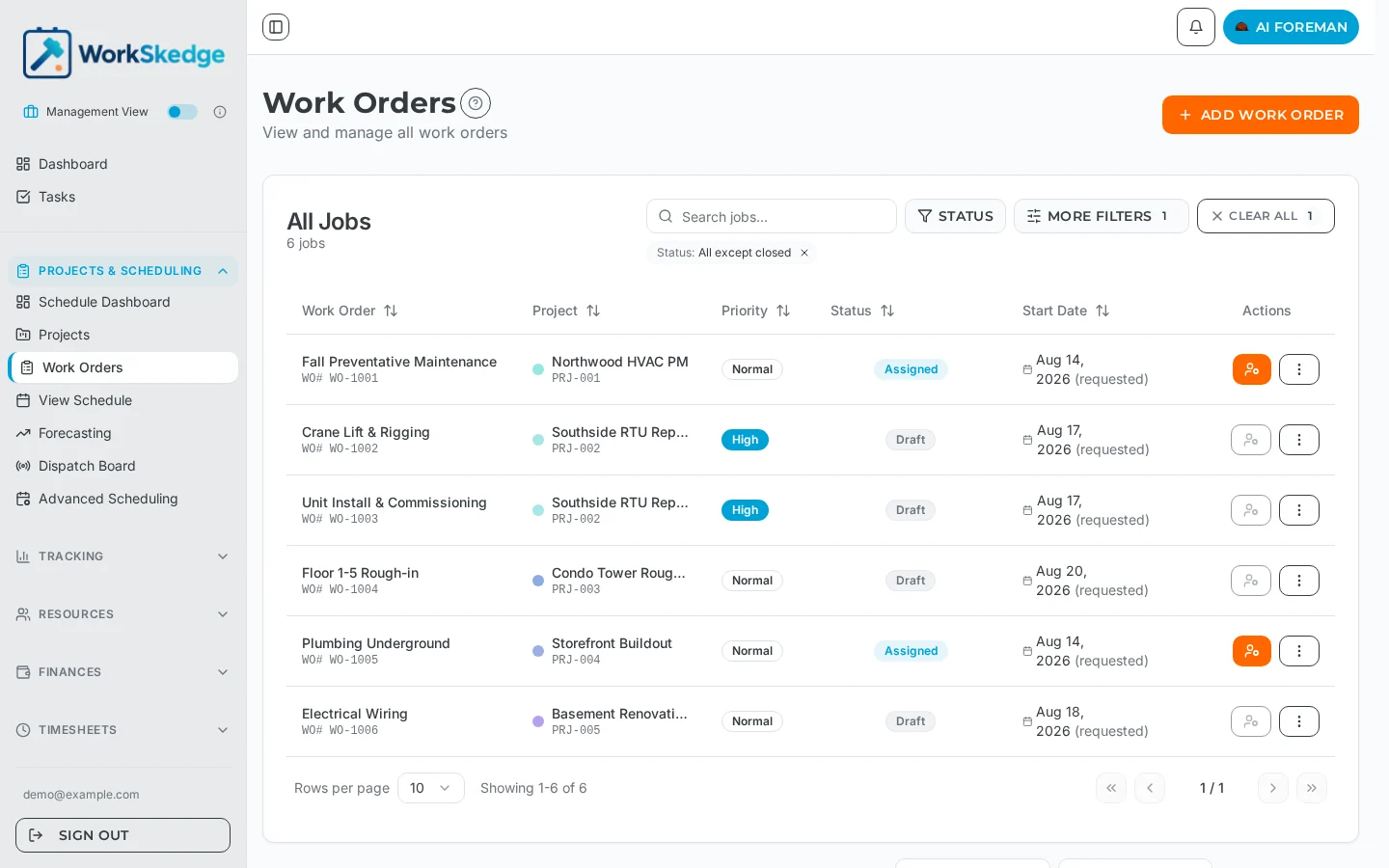
WorkSkedge automatically snapshots every change made to a work order once it is Assigned or beyond. Open the work order's detail drawer and click Version History to see every version, who saved it, and a side-by-side comparison of what changed.
On this page
Steps
- 1Open the work order detail drawer
- 2Click Version History
- 3Review the version list (number, timestamp, author, status)
- 4Click a version to compare it against the current or previous version
How version history works
Once a work order reaches Assigned (or any later status), every update creates a read-only version snapshot — automatically, with nothing to configure. Work orders in Created or Ready do not create versions.
Each snapshot captures the complete previous state: status and priority, all expected and actual dates/times, performed-by and vendor selection, people and skill requirements, equipment and specialty materials, scope-of-work checklists, scheduler notes, custom field values, who made the change (user and email), and when.
View the version history
- Open the work order's detail drawer.
- Click Version History.
- Browse the list of versions — each shows the version number, the date and time saved, the user who saved it, and the status at that version.
- Click any version to compare it with the current or previous version.
Reading the comparison view
Differences are shown side-by-side (old value → new value) with changes highlighted, organized by section: Basic Information, Timeline (expected and actual), Resource Requirements, Equipment, Specialty Materials, Scope of Work, Scheduler Notes, and Custom Fields.
Rules to know
- Versions are numbered sequentially (1, 2, 3…) and are read-only — they cannot be edited or deleted.
- The first submission (Created → Ready) does not create a version.
- Version snapshots are created in the background and never block your save.
- Version emails depend on the
work_order_modified_after_assignednotification event being enabled in notification settings; version snapshots and email delivery are independent of each other.
Frequently asked questions
Why does my work order have no version history?
Version tracking only starts once a work order is Assigned. Work orders in Created or Ready status do not create versions, and the initial Created → Ready submission never creates one either.
Can I delete or edit a version?
No. Versions are read-only snapshots kept as an audit trail and cannot be modified or removed.
Does version history slow down saving?
No. Snapshots are created asynchronously in the background, so saving a work order is never blocked by version creation.
Who gets notified when a work order changes?
That depends on your notification settings — the work_order_modified_after_assigned event controls email notifications for changes made after assignment. Version snapshots are recorded regardless.
Was this article helpful?
Still stuck?
Send us the article name and what you expected to happen.
Last verified August 30, 2026