
How do progress, daily and completion reports work?
Short answer
Submit progress and daily reports with photos from the field, and complete a work order with an approved completion report.
On this page
Field reporting on a work order happens in two forms. Progress (daily) reports are informational updates filed while the work is running — notes, photos and materials used. A completion report is the final sign-off: it checks the scope off, meets your company''s completion requirements, and — once approved — moves the work order to complete.
Before you start
- The work order should be Assigned or Active, with a site lead who can file the report.
- A scope of work makes reporting far more useful — the report loads the scope tasks as its checklist.
- Completion requirements (minimum photo count, whether notes are required, who may approve) are company-level settings.
Steps
- 1Open the work order and go to the Scope tab
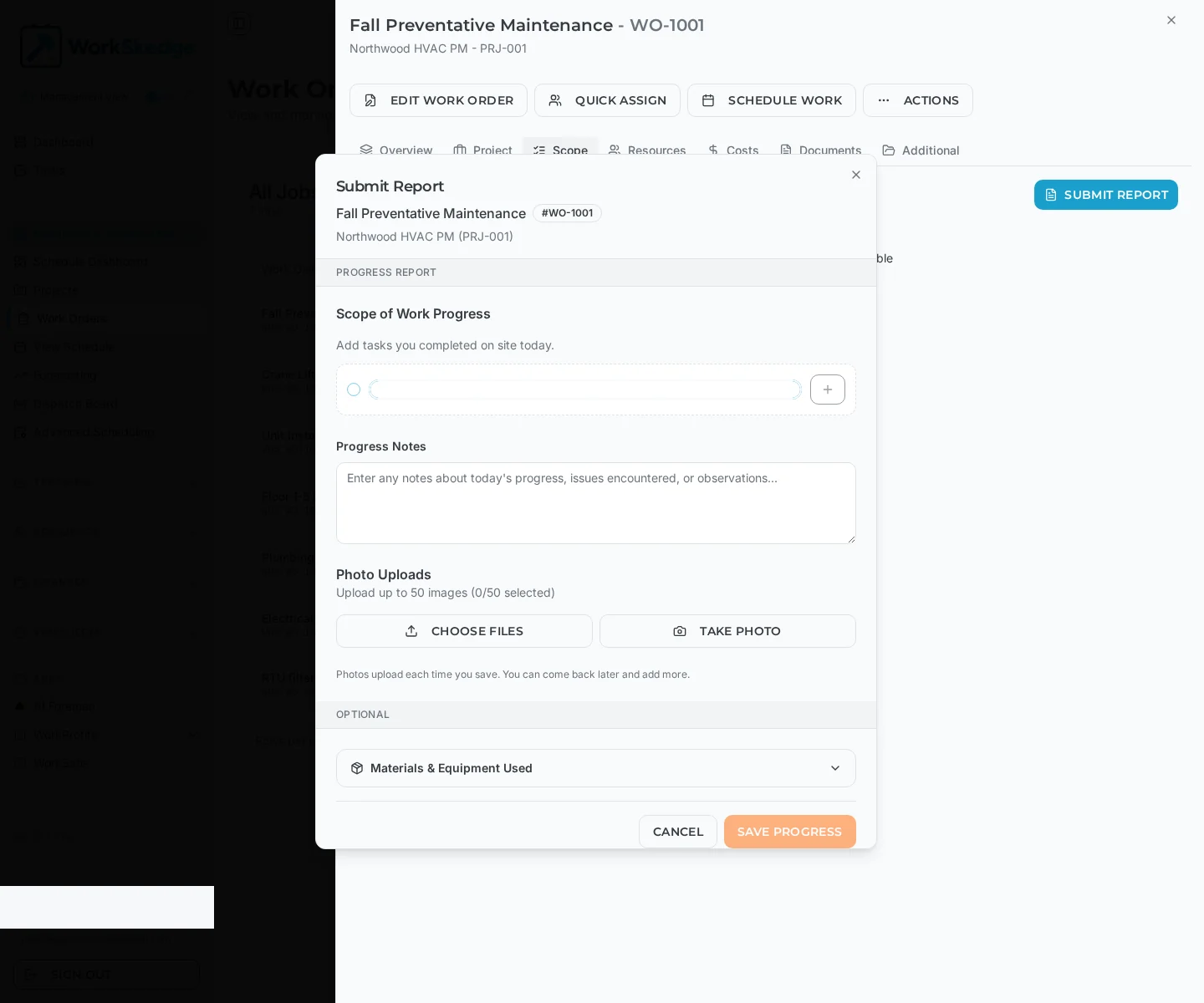
- 2Click Submit Report
- 3Record scope progress and write progress notes
- 4Attach photos with Choose Files or Take Photo
- 5Optionally add materials and equipment used
- 6Click Save Progress — or complete the full completion checklist to submit a completion report for approval
Submit a progress report
- Open the work order — from My Schedule in the field, or the Work Orders list in the office.
- Go to the Scope tab and click Submit Report.
- Tick off scope progress — add or check the tasks completed on site today.
- Write progress notes — what was done, plus any issues or delays.
- Add photos with Choose Files or Take Photo (up to 50 images per report; photos upload each time you save, so you can return and add more).
- Optionally expand Materials & Equipment Used and set quantities — these persist as usage records on the work order.
- Click Save Progress. Notification emails go out according to your company notification settings.
Completion reports and approval
A completion report has requirements a progress report does not:
- All scope checklist items must be complete — it will not submit with items outstanding.
- The company completion checklist (for example "site cleaned", "materials removed") must be completed.
- A minimum number of photos must be attached — the count is configurable.
- Final notes may be required or optional, per company setting.
Flow: the site lead submits the completion report, a manager or project manager reviews it, and on approval the work order moves to complete. A rejected report comes back with comments and the work order stays in progress until it is revised and resubmitted. Only one active completion report exists per work order, and an approved report is locked.
Reminders
Both report types have automatic reminder emails that run daily at 8 PM in your company timezone:
- Daily progress reminder — for active work orders flagged as requiring a daily report, unless one has already been submitted today.
- Completion report reminder — for active or assigned work orders whose end date is today or past with no completion report yet.
Notes and limits
- There is no direct file upload onto a work order. Files arrive either through a report (from the field) or as project documents shared with the field team. The work order Documents tab is read-only — it rolls up report photos, purchase order attachments and invoices.
- Photo captions are set automatically from the uploaded file name; use the report''s notes field for narrative detail.
- Reports are not downloaded individually. Use Download PDF in the work order drawer for a single PDF containing the work order details, the full scope with recorded values, and every report photo grouped by report date. Use Download Project on the project for a ZIP with a PDF per work order.
- Site leads can submit on behalf of a crew member who has no system access; the report records both people.
Common errors
- Submit Report is not producing a completion option — the work order is not in a state where completion applies, or the scope still has open items.
- The completion report is blocked — check for unchecked scope items, an incomplete completion checklist, too few photos, or missing required notes.
- A photo-heavy PDF takes minutes — photos are decoded by a background job; the download starts when it finishes, and it keeps running if you navigate away.
Related: scope of work checklists, work order statuses and lifecycle and version history.
Frequently asked questions
What is the difference between a progress report and a completion report?
Progress (daily) reports are informational updates filed while work is running — notes, photos and materials — with no approval step. A completion report is the final sign-off: it requires all scope items complete, the company completion checklist, a minimum photo count, and manager or project manager approval before the work order moves to complete.
How many photos can I attach to a report?
Up to 50 images per report. Photos upload each time you save, so you can reopen the report later and add more.
Can I upload a file straight onto a work order?
No. Files reach a work order either through a daily or completion report from the field, or as project documents shared with the field team. The work order Documents tab is read-only and rolls up report photos, PO attachments and invoices.
How do I get a PDF of what the crew reported?
Open the work order and click Download PDF. The single PDF includes the work order details, the full scope of work with recorded values, and all report photos grouped by report date. Download Project on the project gives a ZIP with a PDF per work order.
Who gets notified when a report is submitted?
Recipients follow your company notification settings — project managers, site leads, managers, the context project manager, and any custom email addresses configured.
Does WorkSkedge remind the crew to file reports?
Yes. Reminder emails run daily at 8 PM in the company timezone: a daily progress reminder for active work orders that require one, and a completion report reminder when the end date has arrived or passed with no completion report.
Was this article helpful?
Still stuck?
Send us the article name and what you expected to happen.
Last verified August 31, 2026