
How do I add a scope of work checklist to a work order?
Short answer
Build the scope of work on a work order with checklist groups, tasks and custom fields, and reuse them as templates.
On this page
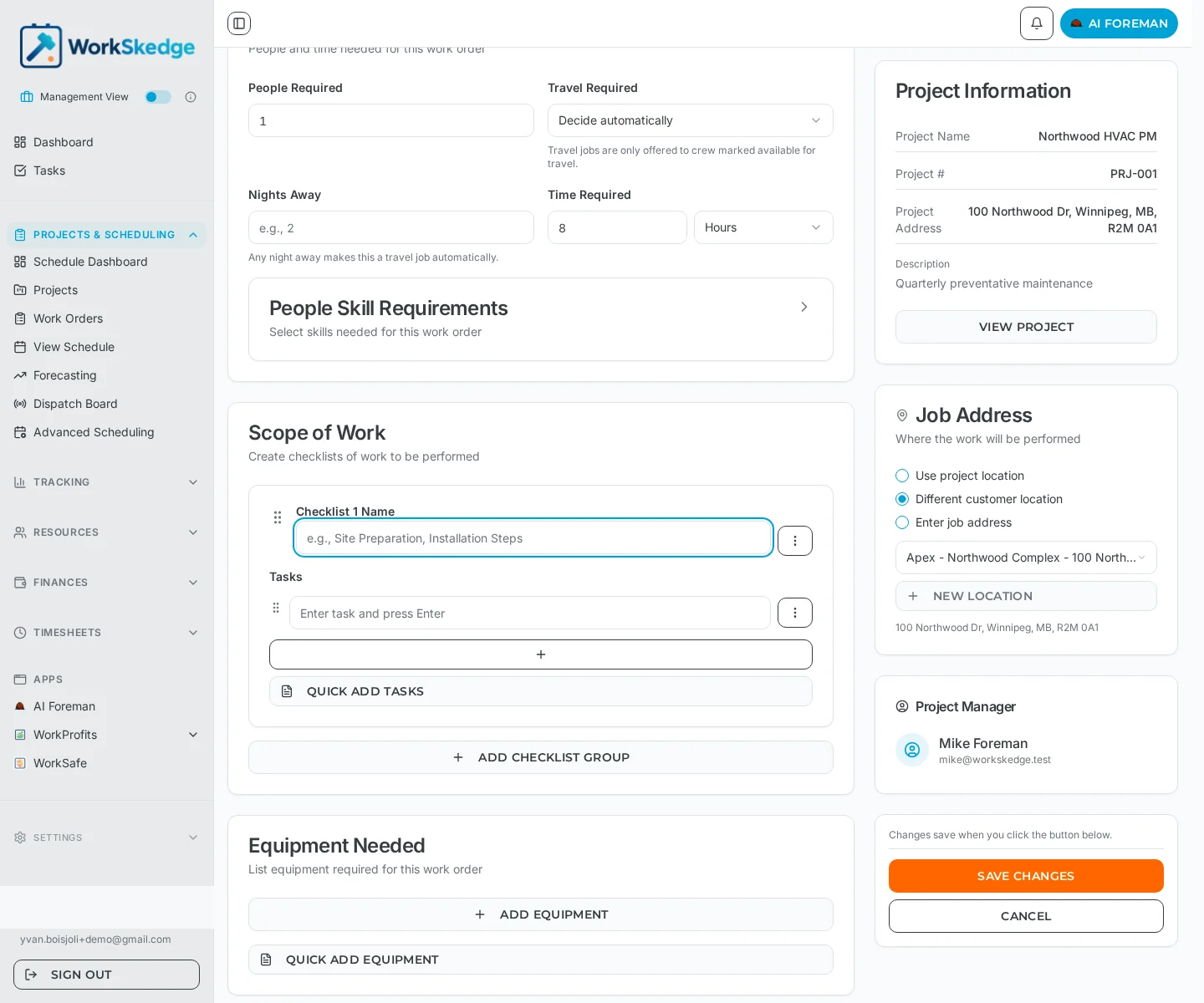
The Scope of Work section of the work order form is where you list the tasks the crew has to perform. You add one or more checklist groups, add tasks inside each group, and — where you need data back from the field — attach custom fields to a task so the crew records measurements, quantities or selections instead of just ticking a box.
Before you start
- The work order must already exist, or you can build the scope while creating it.
- Editing the scope happens on the work order form (Edit Work Order), not on the read-only detail tabs.
- Reusable templates are managed under Settings > Workflow > Project & Work Order Rules > Templates, so you need settings access to create them.
Steps
- 1Open the work order and click Edit Work Order
- 2Scroll to Scope of Work and click Add Checklist Group
- 3Name the group and add its tasks (or use Quick Add Tasks)
- 4Attach custom fields to tasks that need data back from the field
- 5Optionally load a saved task or checklist group template
- 6Click Save Changes
Add checklist groups and tasks
- Open the work order from the Work Orders list and click Edit Work Order.
- Scroll to Scope of Work and click Add Checklist Group.
- Name the group — for example Site Preparation or Installation Steps.
- Add tasks: type the task and press Enter, or use Quick Add Tasks to paste several at once.
- Add more groups with Add Checklist Group if the job has distinct phases.
- Click Save Changes. Nothing on the work order form is saved until you do.
What to fill in on a task
A task can be a plain checkbox, or it can carry custom fields so the crew returns structured data:
| Field type | Use it for |
|---|---|
| Text | Short entries such as codes, names or serial numbers |
| Number | Quantities and measurements |
| Dropdown | A fixed list of options |
| Note | Longer free-text description |
Each field also has properties:
- Required — must be filled before the task can be completed.
- Display order — controls the position of the field (or the column, in table view).
- Input vs display-only — input fields are editable by anyone with permission; display-only fields can only be edited by administrators and managers.
Table view for repetitive scopes
When a checklist is a grid of the same values repeated per unit — units, floors, panels — switch the checklist to Table View. Columns are the fields, rows are the tasks. On desktop you can Tab between cells, press Enter to drop to the next row, and export the completed grid to CSV. On mobile, field workers get the same data as one card per task with the fields inside it.
Reuse a scope with templates
- Load Template on a task pulls in a saved task definition and its fields, overwriting that task''s text and fields but keeping its position in the list.
- Load Checklist Group pulls in a whole saved group of tasks; you can still edit individual tasks afterwards.
- Templates are created and categorised in Settings > Workflow > Project & Work Order Rules > Templates — task templates for a single task, checklist group templates for a set.
Notes and limits
- The scope is what completion reports are built from: the completion dialog loads the scope tasks as checklist items, and a completion report cannot be submitted while scope items remain unchecked.
- Loading a task template generates new field IDs, so previously recorded values are not carried over.
- Template validation: field labels cannot be blank, a checklist group template must contain at least one task, and task text cannot be blank.
Common errors
- You changed the scope and it reverted — the work order form only persists on Save Changes.
- A field worker cannot edit a value — the field is set to display-only, which limits editing to administrators and managers.
- A completion report will not submit — one or more scope tasks are still unchecked, or a required field on a task is empty.
Related: create a work order, progress and completion reports and work order statuses.
Frequently asked questions
Where do I edit the scope of work?
On the work order form. Open the work order and click Edit Work Order, then scroll to the Scope of Work section. The detail drawer's Scope tab is a read-only view of the same data plus submitted reports.
What field types can a scope task collect?
Text, number, dropdown and note. Each field can be marked required, given a display order, and set as input (editable by permitted users) or display-only (administrators and managers only).
Can I reuse a scope across work orders?
Yes. Save task templates and checklist group templates under Settings > Workflow > Project & Work Order Rules > Templates, then use Load Template or Load Checklist Group in the scope editor.
What is table view for?
Repetitive scopes. The checklist becomes a grid where fields are columns and tasks are rows, which is faster to fill on desktop and can be exported to CSV. Mobile users see the same data as one card per task.
Does the scope affect completing the work order?
Yes. Completion reports load the scope as their checklist, and every scope item must be complete before a completion report can be submitted.
Was this article helpful?
Still stuck?
Send us the article name and what you expected to happen.
Last verified August 31, 2026