
Share project documents with the field team
Short answer
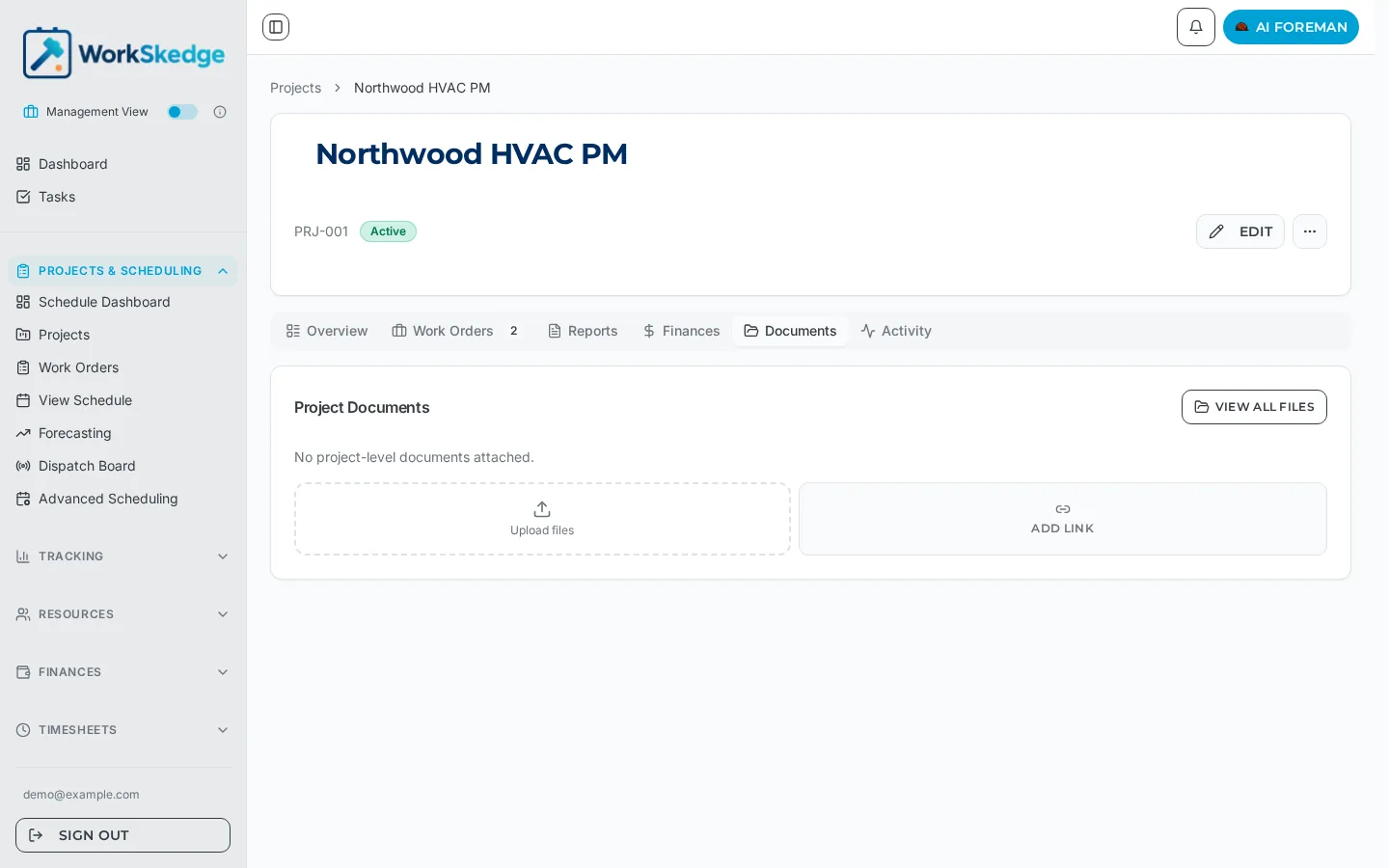
Upload drawings, permits and spec sheets to the project Documents tab, then turn on sharing so Site Leads and Workers can open them from the work order on their phone. Sharing is off by default.
On this page
Steps
- 1Open the project and select the Documents tab.
- 2Upload files by dragging them onto the upload area, or click Add Link for files hosted elsewhere.
- 3Turn on the share with field team option for the documents crews need on site.
- 4Leave sharing off for commercial or internal documents.
- 5Open a work order under the project to confirm the shared file appears for the field.
- 6Unshare a document when it is superseded, and upload the new revision with the revision in its filename.
Where project documents live
Open the project and select the Documents tab. You can:
- Upload files — drag and drop, or browse. Drawings, permits, photos, PDFs and spec sheets.
- Add link — point at a file stored elsewhere, for example a shared drive folder, without uploading a copy.
- View all files — see everything attached to the project in one list.
Sharing with the field is deliberate
Project documents are not visible to the field by default. Turn on the share with field team option on a document to expose it to Site Leads and Workers, who then see it inside the work order drawer in the field portal.
Keep the default off for anything commercial — estimates, subcontractor pricing, internal margin notes. Share the things a crew genuinely needs on site: drawings, permits, cut sheets, site access instructions, safety documentation.
What the field sees
A shared document appears on every work order under that project, so you do not have to re-attach the same drawing to each phase. Unsharing removes it from the field view immediately; the file itself stays on the project.
Good practice
- Name files so they are readable on a phone:
Level-2-mech-drawing-RevC.pdf, notscan001.pdf. - Re-upload revisions with the revision in the filename rather than overwriting silently, so crews can tell which set they are on.
- Use links for large document sets that live in your drawing system.
Frequently asked questions
Can field workers see project documents automatically?
No. Sharing is off by default. A document is only visible to Site Leads and Workers after you turn on the share with field team option.
Do I have to attach the drawing to every work order?
No. A shared project document is available on every work order under that project.
Can I link to files stored in another system?
Yes. Use Add Link on the Documents tab to attach an external URL instead of uploading a copy.
What happens if I unshare a document?
It disappears from the field view straight away. The file stays attached to the project for office staff.
Was this article helpful?
Still stuck?
Send us the article name and what you expected to happen.
Last verified August 31, 2026