
Project statuses and lifecycle
Short answer
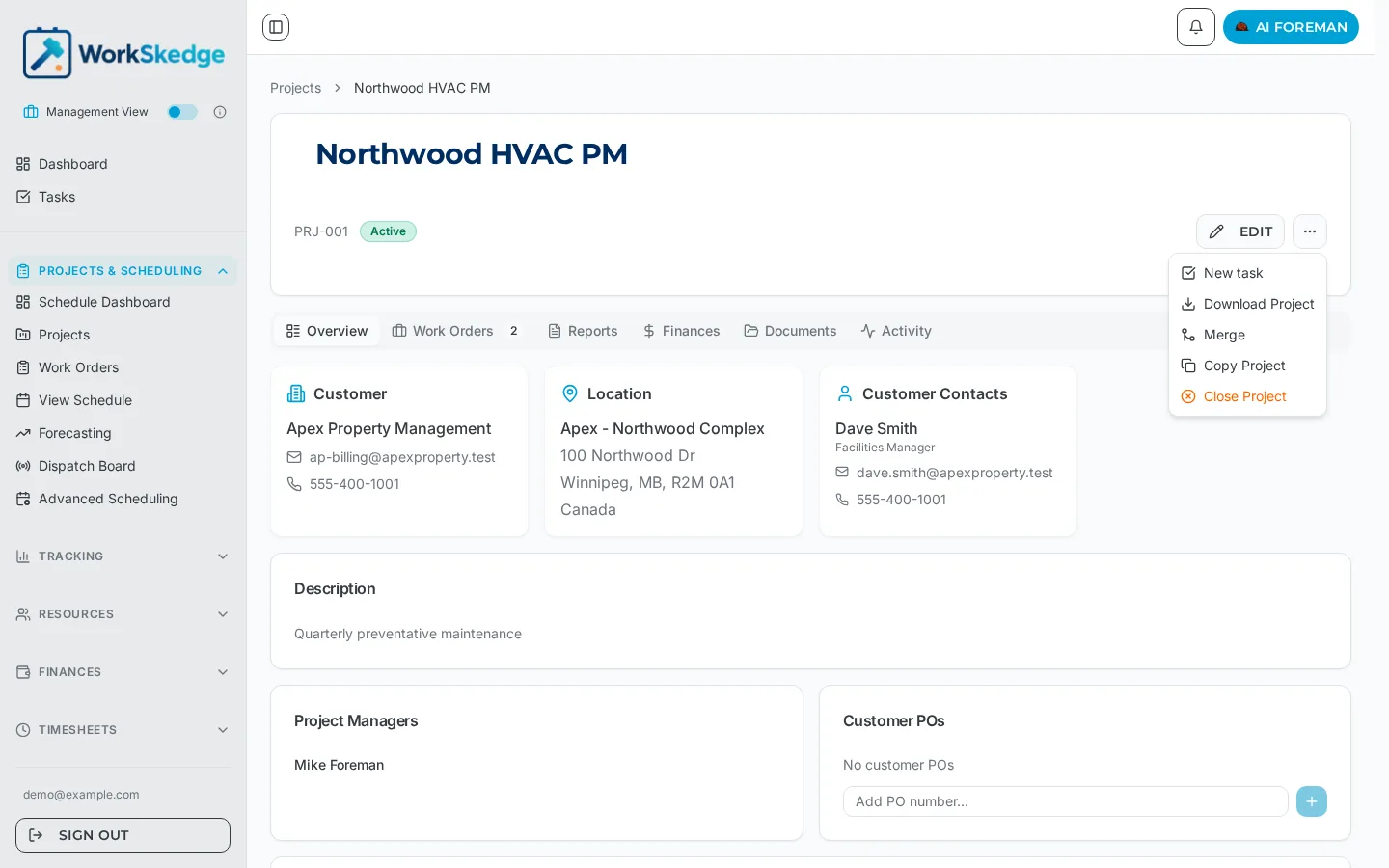
WorkSkedge runs projects in Simple Status Mode (active and closed) or Advanced Status Mode (lead, estimating, pending approval, approved, active, complete, closed, job lost). Statuses change from the "..." actions menu on the project header, or automatically when work orders are created.
On this page
Steps
- 1Open the project from Projects & Scheduling > Projects.
- 2Check the status badge next to the project code on the header card.
- 3Click the "..." actions menu beside the Edit button.
- 4Choose the status action you need (Approve, Mark Complete, Close Project, Reopen, Mark as Job Lost).
- 5Confirm in the dialog if one appears.
- 6Verify the new status badge on the project header and in the Activity tab.
The two status modes
Simple Status Mode keeps two states — active and closed. Use it if you do not run a sales pipeline inside WorkSkedge.
Advanced Status Mode adds the pre-sale and wrap-up stages:
lead -> estimating -> pending_approval -> approved -> active -> complete -> closed
job_lost is the terminal status for work you did not win.
What each status means
- Lead — an opportunity. No work should be scheduled.
- Estimating — you are pricing the job.
- Pending approval — the estimate is with the customer.
- Approved — the customer said yes. Work orders can now be created. A project manager is required.
- Active — work is underway.
- Complete — field work is finished but billing or paperwork is still open.
- Closed — the project is finished and locked down.
- Job lost — the opportunity did not convert.
Changing a status manually
Open the project and use the "..." actions menu next to the Edit button on the project header card. Depending on the current status you will see actions such as Approve, Mark as Job Lost, Mark Complete, Close Project, and Reopen. You can also change the status from the Status field in the project's Edit form.
Statuses that change on their own
Creating a work order flips the parent project to active. In Advanced Status Mode this skips the remaining sales stages and fires lifecycle notifications out of order, so never create a work order as a shortcut for advancing a project. In Simple Status Mode, creating a work order on a closed project reverts it to active.
Work-order creation rules by status
- Advanced mode — allowed on
approvedandactive. Blocked onlead,estimating,pending_approval,complete,closedandjob_lost. - Simple mode — allowed on
active.
Frequently asked questions
How do I know which status mode my company uses?
If your projects only ever show Active or Closed, you are in Simple Status Mode. If you see Lead, Estimating, Pending Approval or Approved badges, Advanced Status Mode is enabled.
Why did my lead suddenly become active?
Someone created a work order against it. Work-order creation forces the parent project to active. Advance the project through the actions menu instead.
Can I go backwards in the lifecycle?
Yes for the reversible steps — a closed project can be reopened from the actions menu, which returns it to an open status so work can resume.
What is the difference between Complete and Closed?
Complete means field work is done but billing or paperwork may still be open. Closed is the final state and requires the project's work orders to be resolved first.
Was this article helpful?
Still stuck?
Send us the article name and what you expected to happen.
Last verified August 31, 2026