
Add contacts, locations and project managers
Short answer
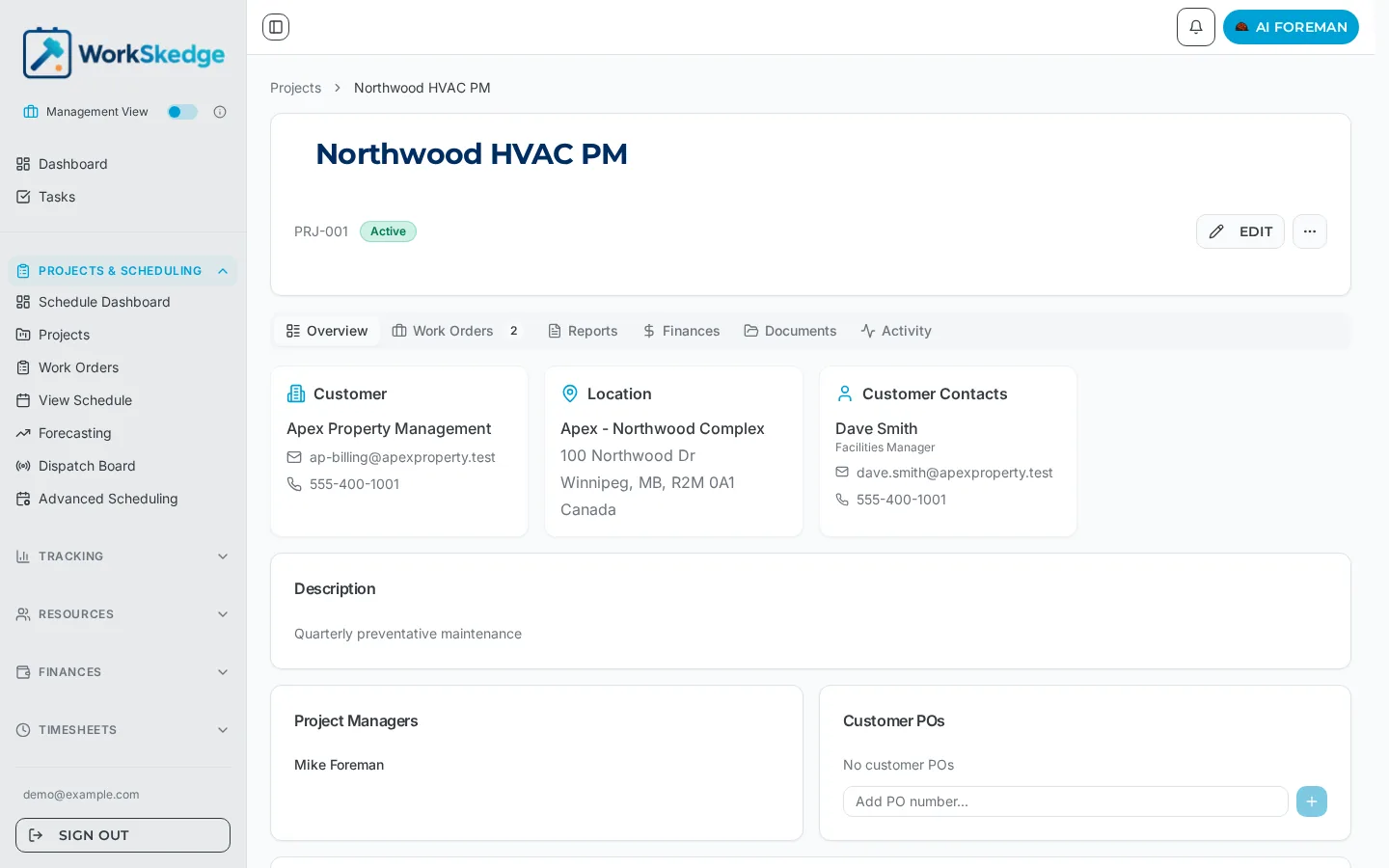
The project Overview tab holds the customer, job-site location, customer contacts and project managers. Fill these in before scheduling so work orders, dispatch routes and invoices inherit the right people and address.
On this page
Steps
- 1Open the project and stay on the Overview tab.
- 2Click Edit on the project header to change the customer, job site location or description.
- 3Confirm the Location card shows the address the crew should drive to.
- 4Add or update customer contacts and mark the primary contact.
- 5Assign up to two project managers under Project Managers.
- 6Add the customer PO number in the Customer POs card when you receive it.
- 7Save, then check the Activity tab to confirm the change was recorded.
Why this belongs on the project, not the work order
Location, contacts and owners are project-level records. Every work order created under the project inherits them, so fixing them once on the project fixes them everywhere downstream — schedules get the right site address, and invoices get the right billing contact.
Job-site location
The job site defaults to the customer location. Set a distinct Job Site Address when the crew is working somewhere else — a tenant suite, a second building, a remote yard. The address shown on the Overview tab is what the field team sees for navigation.
Customer contacts
Contacts are the people your crew and office actually call: a facilities manager, a site superintendent, an accounts payable clerk. Each contact carries a role, an email and a phone number, and appears in the Customer Contacts card on Overview. Mark the day-to-day contact as primary so dispatch knows who to call first.
Project managers (owners)
A project can carry up to two project managers. Owners:
- appear on the Projects list in the Owner column,
- drive the Projects by Owner widget on the dashboard,
- are required before a project can be set to Approved.
Customer POs and internal notes
The Overview tab also holds Customer POs — add the PO number as soon as the customer issues it, so invoices reference it — and Internal Notes, which are for your team only and are not shared with the customer.
Frequently asked questions
How many project managers can a project have?
Up to two. Both appear on the Projects list and in the Projects by Owner dashboard widget.
The crew is going to a different address than the customer's office. What do I change?
Set a separate Job Site Address on the project. Do not overwrite the customer record — that address is used for billing.
Are internal notes visible to the customer?
No. Internal notes stay inside your organisation. Anything the customer should see belongs on documents you explicitly share or on the invoice.
Where do customer contacts show up?
On the project Overview tab and on the work orders created under that project, so dispatch and field staff can reach the right person from the job record.
Was this article helpful?
Still stuck?
Send us the article name and what you expected to happen.
Last verified August 31, 2026