
What the Field Portal is and how to switch into it
Short answer
The Field Portal is the stripped-down view crews use on a phone or tablet. It shows only My Tasks, My Timesheet, My Schedule, Project Search, My Purchases and My Profile, and anyone with management access can flip into it from the sidebar toggle.
On this page
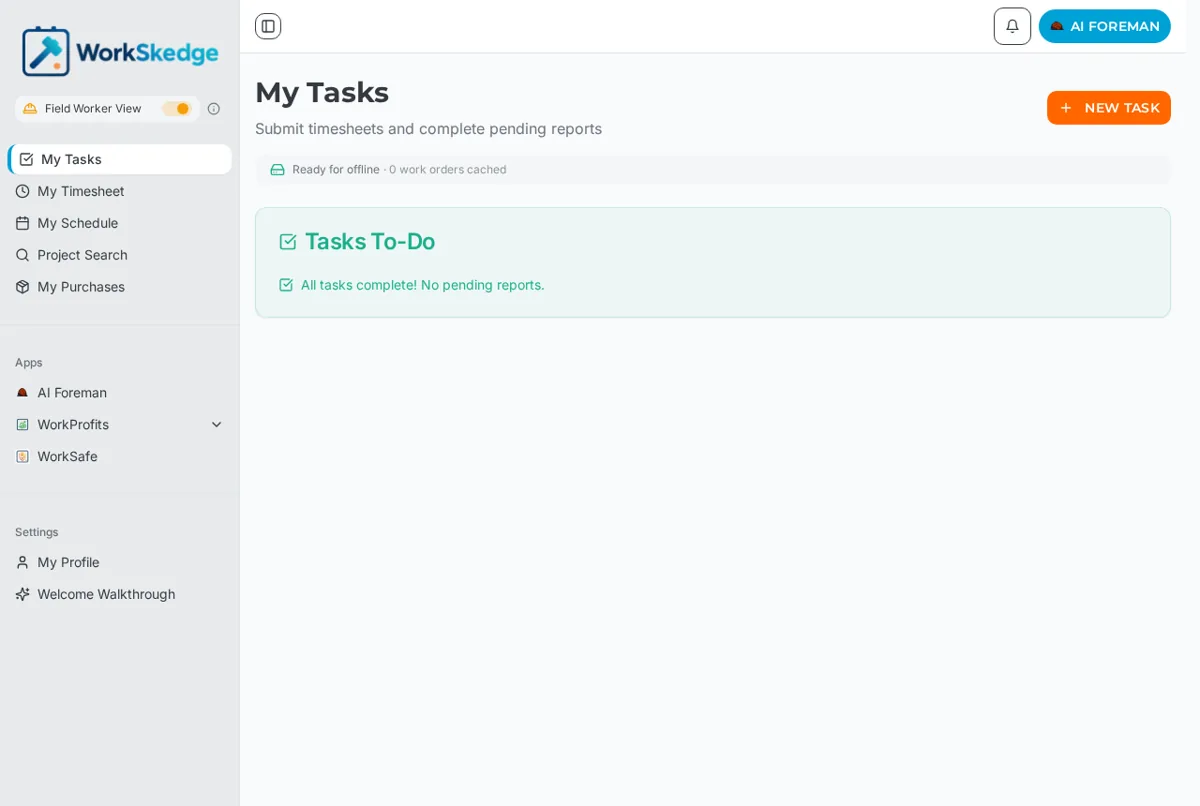
Steps
- 1Sign in at app.workskedge.com with your normal WorkSkedge account.
- 2Find the view toggle at the top of the sidebar, under the WorkSkedge logo.
- 3Click it once - the label changes to Field Worker View and the sidebar collapses to the field screens.
- 4Work from My Tasks, My Timesheet, My Schedule, Project Search and My Purchases.
- 5Click the toggle again to return to Management View.
What the Field Portal is
The Field Portal is not a separate app or a separate login. It is a reduced view of WorkSkedge built for a crew working on a phone or tablet: large tap targets, one job at a time, and no management screens to scroll past.
A field worker who signs in sees this view by default. Someone with a manager or administrator role sees the full management sidebar and can switch into the field view whenever they want to see exactly what their crew sees.
What is in the field sidebar
- My Tasks - the to-do feed: timesheets to submit and reports still outstanding.
- My Timesheet - daily hours, entered by day or reviewed by month.
- My Schedule - the week of assigned work orders, bookings and approved time off.
- Project Search - search every open project and work order, and self-assign if your company allows it.
- My Purchases - purchase orders that person raised or is attached to.
- My Profile - contact details, and the Welcome Walkthrough.
Installed apps such as AI Foreman, WorkProfits and WorkSafe appear under Apps in the same sidebar when your company has them enabled.
Switching views
The toggle sits at the top of the sidebar directly under the logo. It reads Management View when you are in the full app and Field Worker View once flipped. Switching is per-user and sticky - it does not change anyone else's view and it does not change permissions. A field worker cannot toggle into management screens.
Notes and limits
- The Field Portal respects the same roles and permissions as the rest of WorkSkedge. Switching views never grants extra access.
- Field workers only see work orders they are assigned to, plus whatever Project Search exposes.
- The portal is a PWA: it can be installed to a home screen and keeps working with no signal. See the offline article in this category.
Frequently asked questions
Is the Field Portal a different app my crew has to download?
No. It is the same WorkSkedge sign-in at the same address. The sidebar simply shows fewer screens. It can be installed to a phone home screen as a PWA, but it is not a separate app store download.
Do field workers see the management sidebar at all?
No. Field worker roles land in the field view and there is no toggle to management screens for them.
Does switching into Field Worker View change what I can do?
No. Permissions come from your role, not the view. The toggle only changes which screens are listed.
Why can I only see some of the work orders on a project?
Field workers see the work orders they are assigned to. Everything else has to come through Project Search, which your company can also use to allow self-assignment.
Was this article helpful?
Still stuck?
Send us the article name and what you expected to happen.
Last verified August 31, 2026