
Find your work: My Tasks and My Schedule
Short answer
My Tasks is the to-do list - timesheets to submit and reports still owed. My Schedule is the week view of assigned work orders, bookings and time off. Between them a crew member can see everything expected of them today.
On this page
Steps
- 1Switch to Field Worker View and open My Tasks to clear anything outstanding.
- 2Open My Schedule to see the current week of assigned work.
- 3Use the arrows to move a week at a time, or Today to jump back.
- 4Tap a work order to open its detail drawer.
- 5Use Get directions on the Overview tab to navigate to the site.
- 6Open the Scope tab to see the checklist you are expected to complete.
The difference between the two screens
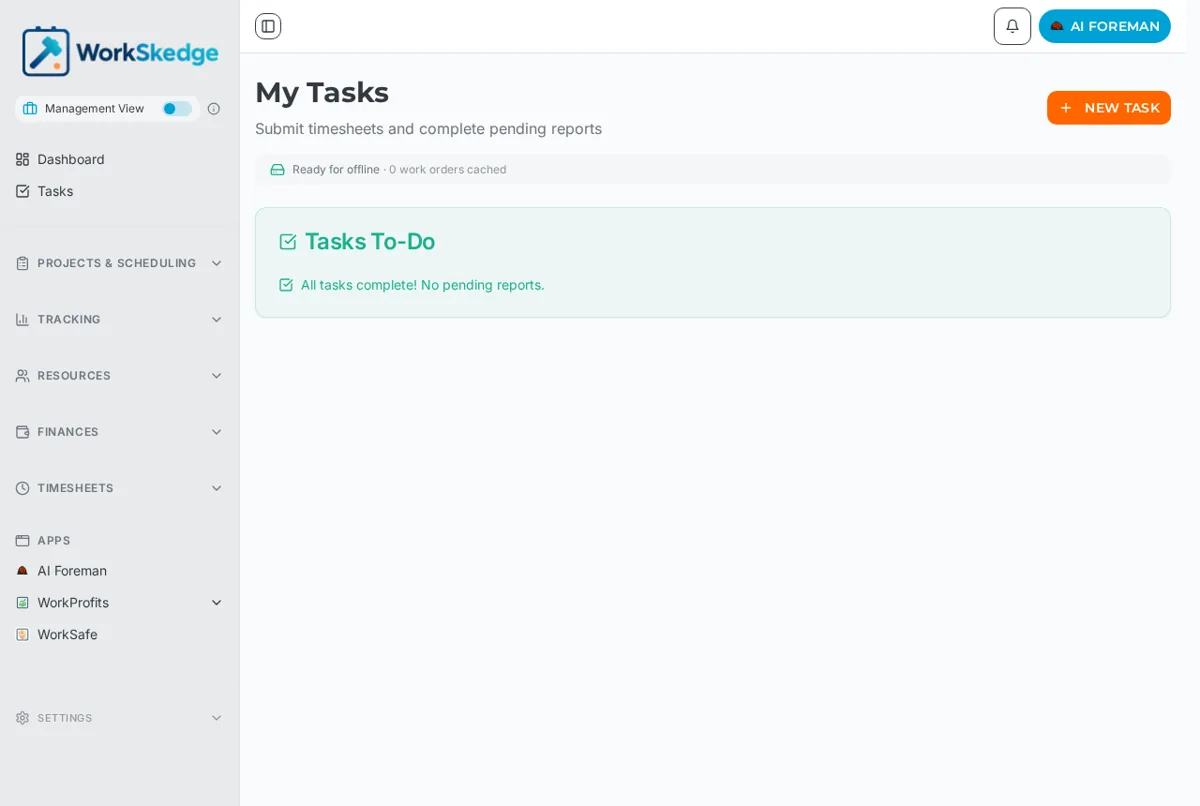
My Tasks answers "what do I still owe?" It lists outstanding timesheets and pending reports, and reads All tasks complete! No pending reports. when there is nothing left. It is the screen a crew member should open at the end of a shift.
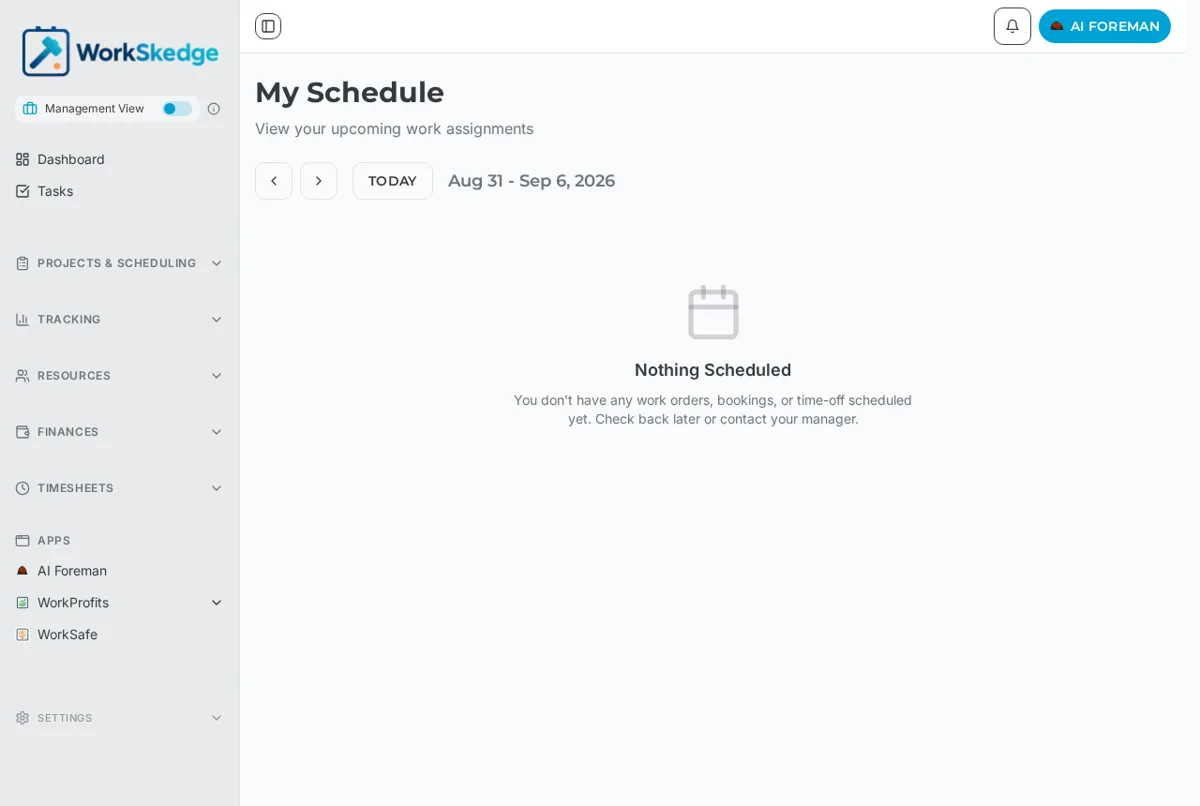
My Schedule answers "where am I working?" It is a week view of assigned work orders, bookings and approved time off, with arrows to step back and forward a week and a Today button to jump back. With nothing assigned it reads Nothing Scheduled.
Opening a job
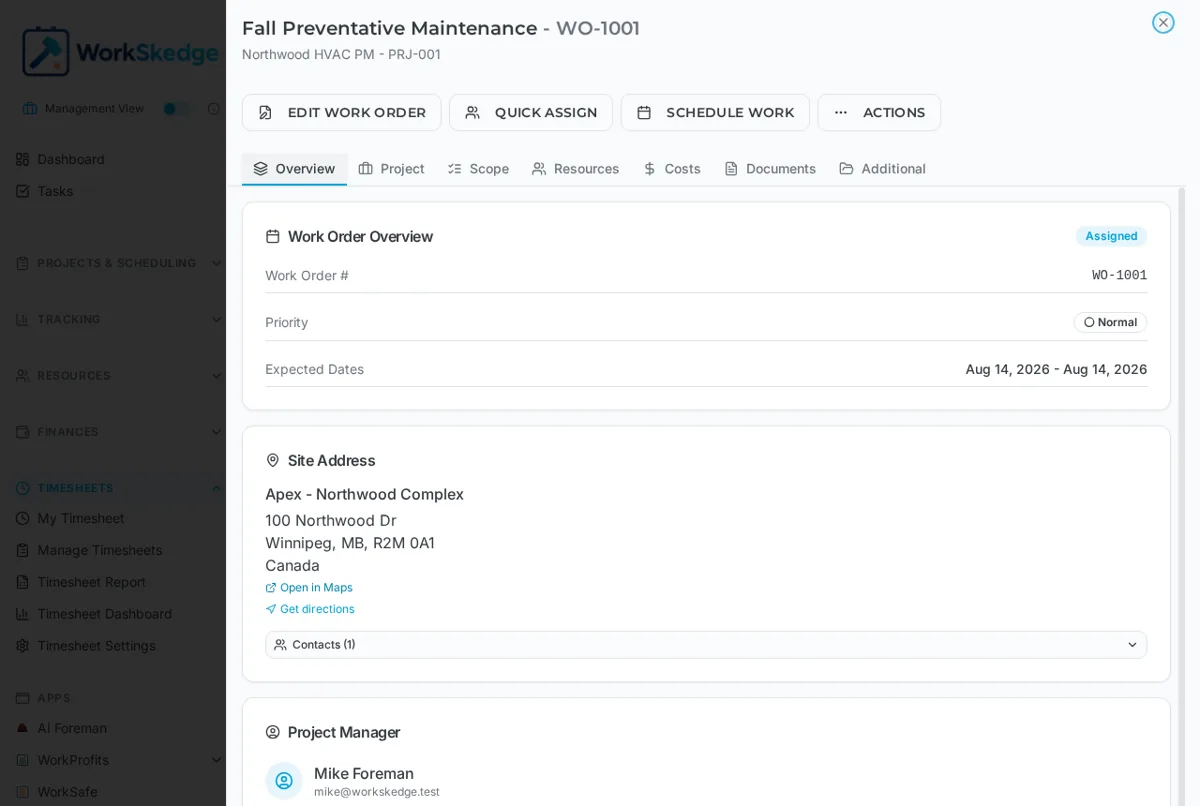
Tap a work order from either screen to open its detail drawer. The tabs across the top are:
- Overview - work order number, priority, expected dates, site address with Open in Maps and Get directions, project manager, and any note left for the worker.
- Project - the parent project and customer.
- Scope - the checklist of tasks, which is what completion reports are built from.
- Resources - who else is assigned.
- Documents - a read-only roll-up of report photos, purchase order attachments and invoices already linked to the work order.
Notes and limits
- Both screens work with no signal once the data has been cached. My Schedule is fully offline-capable; work order detail is read-only offline and only for jobs you opened while online.
- The bell icon in the header carries notifications, including new assignments.
- If a job you expect is missing, it has not been assigned to you yet - check Project Search or ask your scheduler.
What it looks like in WorkSkedge
Frequently asked questions
What is the difference between My Tasks and My Schedule?
My Tasks lists what you still owe - unsubmitted timesheets and pending reports. My Schedule shows where you are working, as a week view of assigned work orders, bookings and time off.
My Schedule says Nothing Scheduled. Is something broken?
No. It means nothing is assigned to you for that week. Step forward a week, or check with your scheduler.
Can I see the site address and get directions?
Yes. The Overview tab of a work order shows the full site address with Open in Maps and Get directions links.
Do these screens work without signal?
My Schedule and the scope checklist work offline. Work order details are read-only offline and only available for jobs you already opened while connected.
Was this article helpful?
Still stuck?
Send us the article name and what you expected to happen.
Last verified August 31, 2026