
Log your hours from the field
Short answer
My Timesheet is where a crew member records the day. Add time entries against the work you did, or submit a 0 hour day when you did not work, then move through the week with the day chips.
On this page
Steps
- 1In Field Worker View, open My Timesheet.
- 2Check the week strip - each day shows its own total, with the week total beside the date range.
- 3Select the day you want, or step with Previous and Next.
- 4Click Add time entry and record the hours against the work you did.
- 5If you did not work that day, click Submit 0 hour day instead.
- 6Switch to Month to confirm no day was missed.
- 7Check My Tasks at the end of the week - outstanding timesheets are listed there.
The screen
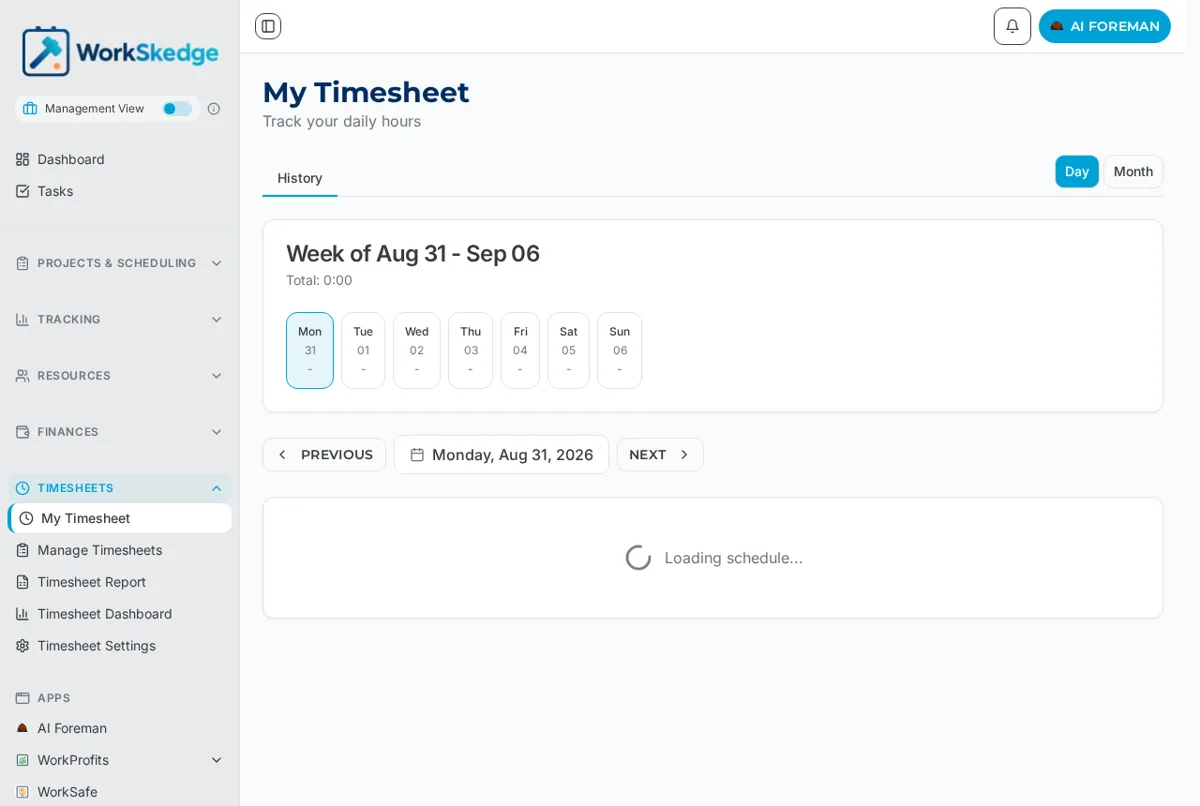
My Timesheet opens on the current working day inside the current week. The week strip across the top shows each day with its total and the week total beside the date range, so gaps are obvious at a glance. Switch between Day and Month to see one day in detail or the whole month at once, and use Previous and Next to move a day at a time.
An unfilled day reads No timesheet for this working day yet. with two buttons:
- Add time entry - record hours against the work you did.
- Submit 0 hour day - the honest answer for a day you did not work, and the way to stop the day sitting on your My Tasks list.
Getting it approved
Submitted days flow to the office for review under Manage Timesheets. Anything still unsubmitted shows up as an outstanding task on My Tasks, which is the quickest end-of-week check that nothing has been missed.
Notes and limits
- Timesheets are fully offline-capable: enter and edit time with no signal and it syncs when you reconnect.
- Submit each day - a week is not submitted as one block from this screen.
- What counts as a working day comes from your company timesheet settings, so weekends and holidays may not appear as days needing entry.
Frequently asked questions
Why would I submit a 0 hour day?
It records that you did not work rather than leaving a gap, and it clears the day off your My Tasks list so the office is not chasing you.
Can I submit a whole week at once?
No. My Timesheet is day-based - submit each working day. The week strip and Month view make it easy to spot a day you skipped.
Can I enter time with no signal?
Yes. Timesheet entry and editing work fully offline and sync automatically when you get connectivity back.
Where do my submitted hours go?
To the office for review under Manage Timesheets, where a manager approves them before payroll and job costing use them.
Why is a day missing from the week strip?
Which days count as working days comes from your company timesheet settings.
Was this article helpful?
Still stuck?
Send us the article name and what you expected to happen.
Last verified August 31, 2026