
Submit a completion report and get it approved
Short answer
A completion report closes out the work. It is built from the scope checklist, needs the minimum number of photos your company requires, and goes to a manager for approval rather than being filed and forgotten.
On this page
Steps
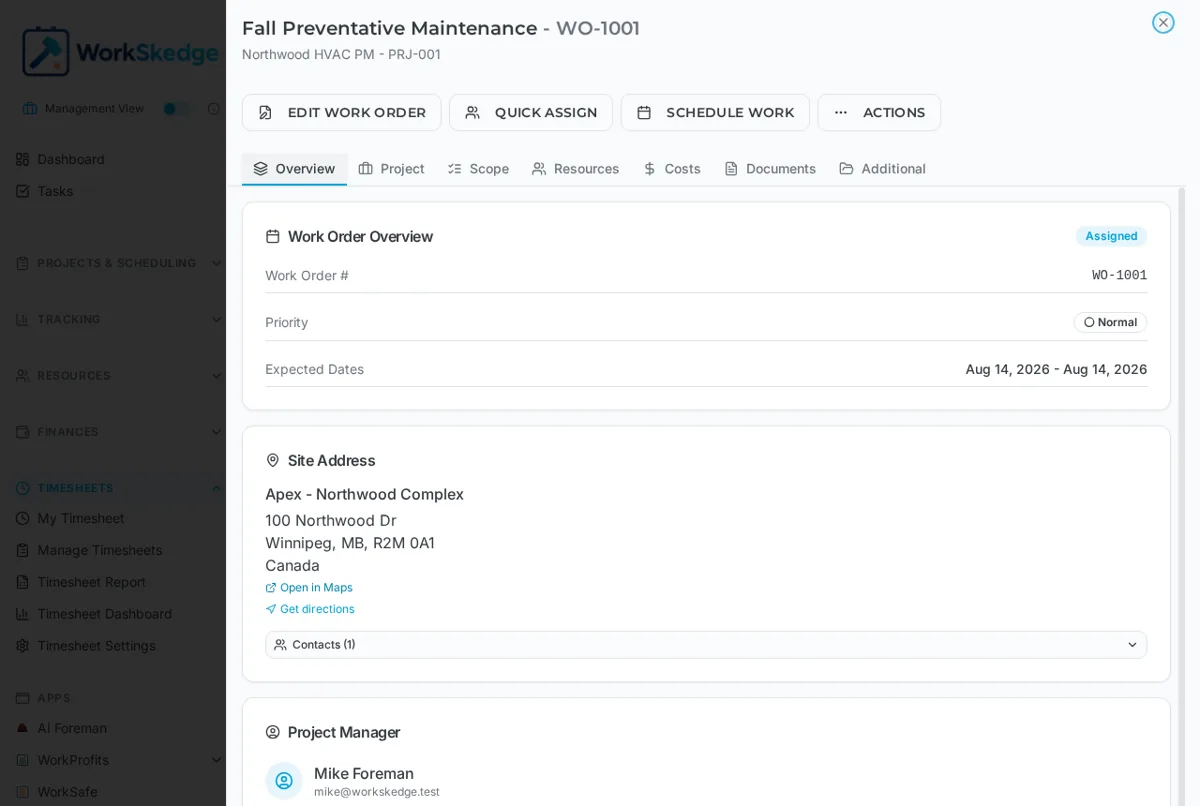
- 1Open the work order from My Tasks or My Schedule.
- 2Go to the Scope tab and mark every checklist task complete, recording any required values.
- 3Start Submit Completion Report.
- 4Fill in the company completion requirements shown in the form.
- 5Attach at least the minimum number of photos your company requires.
- 6Submit - the report status becomes Submitted.
- 7A manager reviews it from the work order Scopes tab and marks it Approved.
How it differs from a daily report
A daily progress report is a running note. A completion report is the sign-off: it is structured around the checklist items your company requires, it enforces a minimum photo count, and it starts an approval workflow. Work orders flagged as requiring a completion report cannot be finished without one.
Before you submit
- Work through the Scope tab and mark every task complete, recording any values the checklist asks for.
- Take the photos. Your company sets the minimum number, and submission is blocked until you meet it.
- Meet every other company-defined completion requirement shown in the form.
If you are the site lead, you can submit the report on behalf of the crew.
After you submit
The report moves to Submitted and waits for a manager or project manager. They review it and mark it Approved. Managers open the same report from the work order Scopes tab, where they can click into the photo gallery and open any image full size to zoom or download the original.
Notes and limits
- Completion reports, including photos, can be created and submitted offline and sync when signal returns.
- Photos: up to 10 per report, JPEG, PNG, HEIC or WebP, up to 50 MB each, with captions taken from the file name.
- There is no separate completion report PDF. Use Download PDF on the work order for a printable record with the scope and every report photo, or Download Project for a ZIP with a PDF per work order.
Troubleshooting
"Cannot submit completion report". Check the requirements first: all required photos uploaded, notes completed if your company requires them, and every required checklist item ticked. These are set per company, so the exact list can differ from another crew's.
Photos are missing from a reopened report. Reopen the report while online — photos are fetched from storage and need a connection to display.
Frequently asked questions
Why will the completion report not submit?
Something required is missing - usually incomplete scope checklist items or fewer photos than the company minimum. The form blocks submission until every company requirement is met.
Who approves the report?
A manager, administrator or the project manager. They open the work order, go to the Scopes tab and approve the submitted report.
Do all work orders need a completion report?
Only those flagged as requiring one. Others can be completed without it, though a report is still good practice.
Can I submit a completion report for a crew member?
Yes, if you are the site lead - reports can be submitted on behalf of the crew.
How do I get a PDF of the completion report?
There is no per-report PDF. Open the work order and click Download PDF for a record that includes the scope and all report photos grouped by report date.
Was this article helpful?
Still stuck?
Send us the article name and what you expected to happen.
Last verified September 1, 2026