
Assign yourself to a work order from Project Search
Short answer
If your company turns on self-assignment, site leads and site workers can pick up a job from Project Search without waiting for a scheduler. The button only appears on work orders that are ready, assigned or active.
On this page
Before you start
Self-assignment is off until an administrator enables it: Settings - Scheduling - Allow field workers to self-assign to work orders. While it is off, the Assign to Me button never appears and jobs have to come from a scheduler.
Steps
- 1Ask an administrator to enable Settings - Scheduling - Allow field workers to self-assign to work orders.
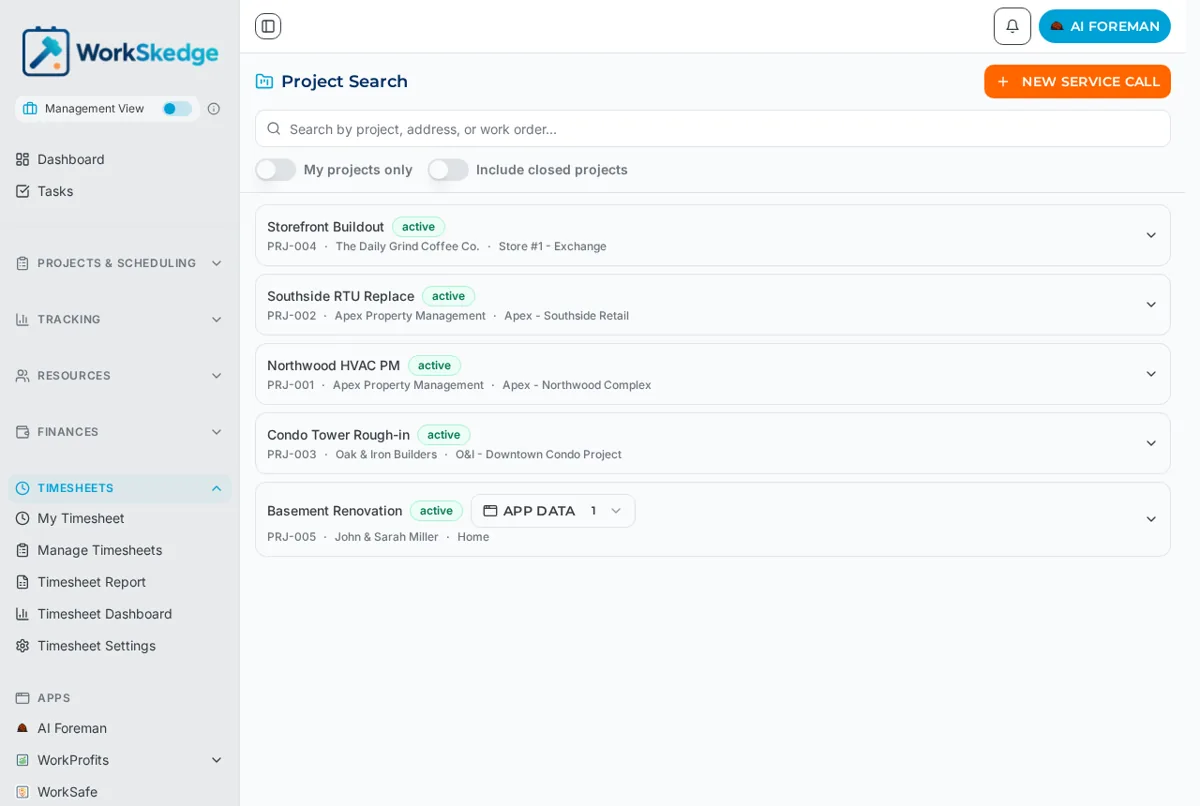
- 2In Field Worker View, open Project Search.
- 3Search by project, address or work order number, or switch on My projects only.
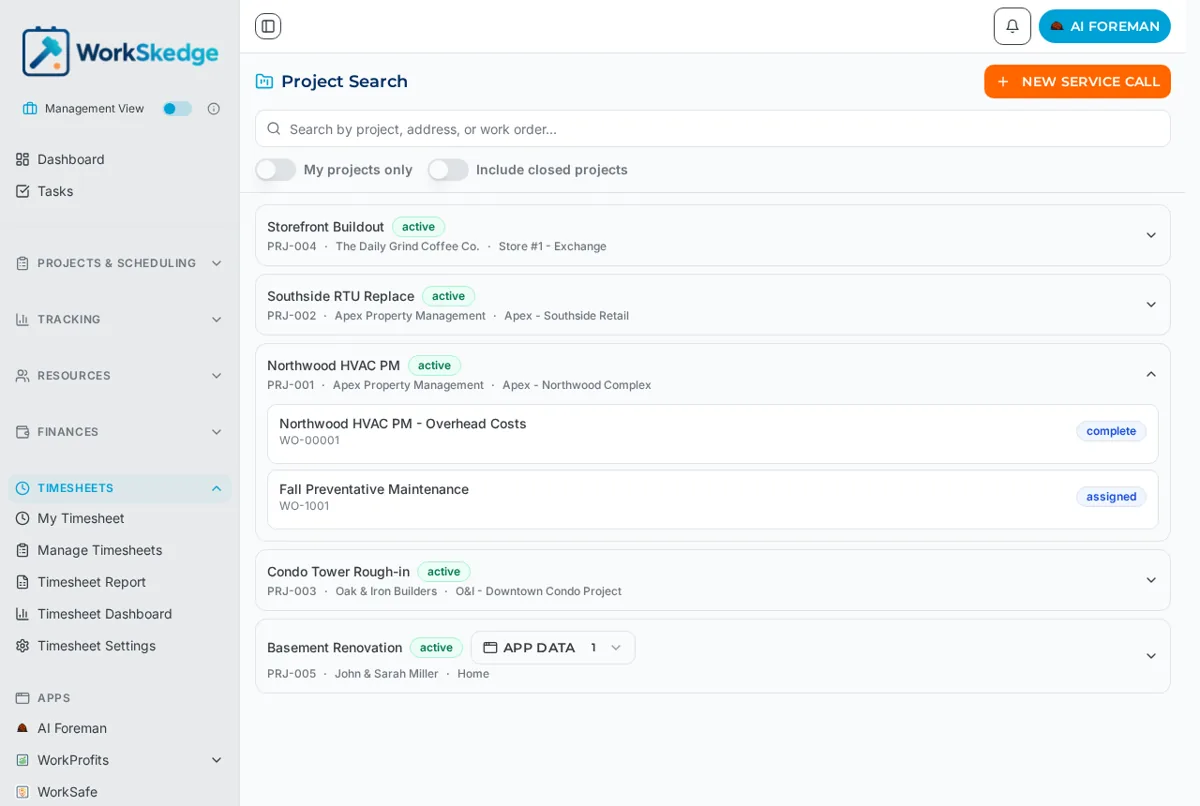
- 4Expand the project to list its work orders and check the status chip.
- 5Click Assign to Me on a work order that is ready, assigned or active.
- 6Set the start date and estimated duration, and check I am the lead on this job if that is you.
- 7Save - the job appears on My Schedule and a calendar invite is emailed to you.
Finding the job
Project Search lists every open project by name, number, customer and site. Search by project, address or work order number, or use the two toggles:
- My projects only - narrow the list to projects you are already on.
- Include closed projects - bring finished work back into the results, for reference.
Expand a project to see its work orders with their status chips - active, assigned, complete, and so on.
Which work orders you can take
| Status | Can self-assign |
|---|---|
| created | No |
| ready | Yes |
| assigned | Yes |
| active | Yes |
| complete-pending | No |
| complete | No |
| closed | No |
If you are already on the job, the button is greyed out and reads Assigned with a checkmark.
What the dialog asks for
- Start date - defaults to today.
- Estimated duration - days plus hours, defaulting to 0 days and 3 hours.
- I am the lead on this job - check this to become the site lead, which is who submits reports for the crew.
What happens when you save
WorkSkedge creates your assignment, builds a schedule record for each day in the duration you gave, sets you as site lead if you checked the box, and moves the work order status: a ready job becomes active if the start date is today or earlier, or assigned if it is in the future. Already assigned or active jobs keep their status. A calendar invite is emailed to you, and the office is notified the job has been scheduled.
Notes and limits
- Self-assignment needs a connection - it is not an offline action.
- You cannot self-assign a job that has not been released yet (
created) or one that is already finished. - Duplicate assignments are prevented, so tapping twice will not double-book you.
Frequently asked questions
Why is there no Assign to Me button?
Either the company setting Allow field workers to self-assign to work orders is off, or the work order is in a status that cannot be self-assigned - created, complete-pending, complete or closed.
Does self-assigning change the work order status?
Yes. A ready job becomes active if the start date is today or earlier, or assigned if the start date is in the future. Jobs already assigned or active stay as they are.
What does I am the lead on this job do?
It sets you as the site lead on the work order, which is the person who can submit reports on behalf of the crew.
Can I self-assign with no signal?
No. Self-assignment writes an assignment, a schedule and notifications, so it needs a connection.
How long does it book me for?
For the estimated duration you enter - it defaults to 0 days and 3 hours, and creates a schedule record for each day in that range.
Was this article helpful?
Still stuck?
Send us the article name and what you expected to happen.
Last verified August 31, 2026