
Submit a daily progress report with photos
Short answer
Daily progress reports are the running record of what happened on site: notes, photos and progress against the scope. They are informational, need no approval, and can be filed more than once on the same work order.
On this page
Steps
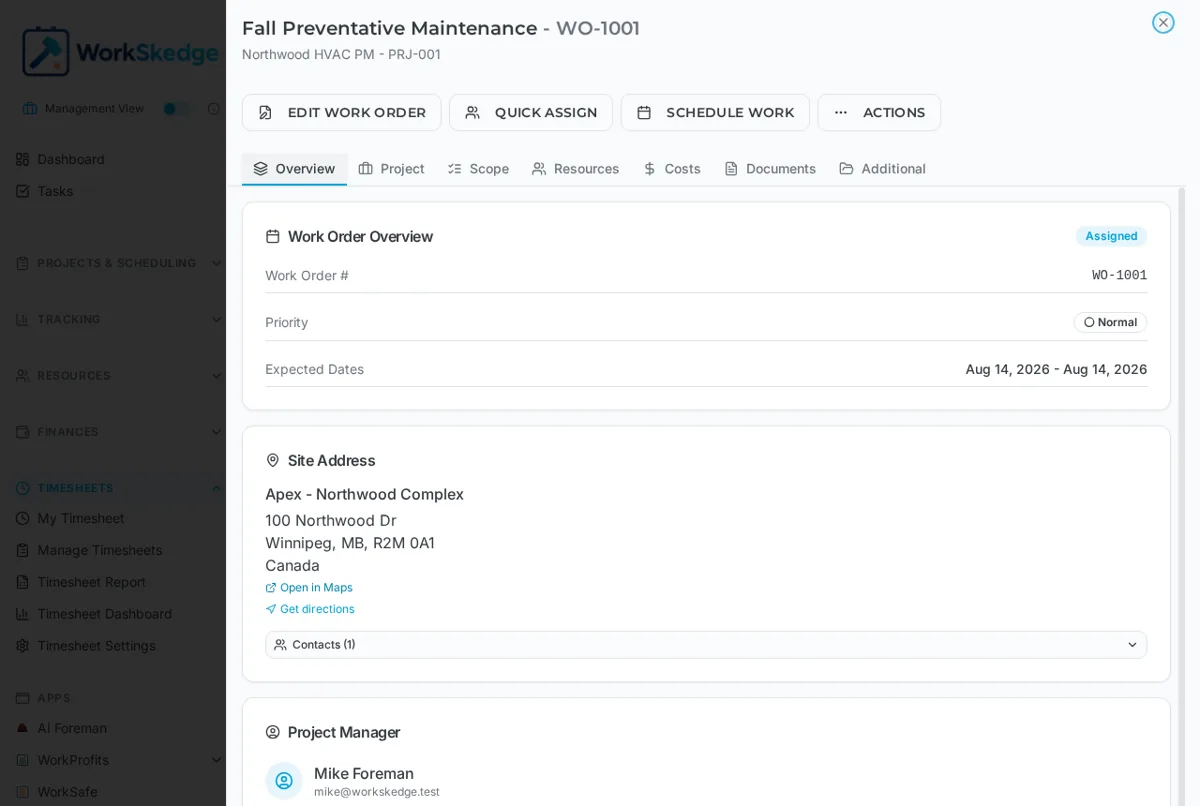
- 1Open the work order from My Tasks or My Schedule.
- 2Start Create Daily Report.
- 3Write what the crew did today, and note anything blocking the work.
- 4Tick off the scope items that are now complete.
- 5In the photo upload section, take photos or pick them from the device - up to 10 per report.
- 6Submit. The report is immediately visible to your manager; no approval is needed.
- 7Repeat on each day worked when the work order requires daily reporting.
When to file one
A daily progress report covers work in progress. Use it to record what the crew did today, anything that blocked them, and photo evidence. There is no approval step - the report is visible to managers as soon as it is submitted.
Reports are optional on most work orders. Where the office has set the daily-report requirement on a work order, one is expected for each day worked, and the outstanding report shows up on your My Tasks screen until it is filed.
Site leads can submit on behalf of crew members, which is the normal pattern when only the lead has a device out on site.
Filing the report
Open the work order from My Tasks or My Schedule and start Create Daily Report. Add your notes, mark off any scope items that are now done, and attach photos in the photo upload section - either straight from the camera or from the device file picker.
Photos
- Up to 10 photos per report.
- JPEG, PNG, HEIC and WebP, up to 50 MB per file.
- Captions are set automatically from the file name. There is no caption box, so put narrative detail such as "second floor wiring complete" in the report notes.
- Photos uploaded through a report are what later appear under the work order Documents tab and in the work order PDF.
Notes and limits
- Daily reports work fully offline: write them, attach photos, and they queue and sync when signal returns.
- There is no direct file upload onto a work order. Field photos always arrive through a report; office documents are uploaded to the project and shared down.
- There is no per-report PDF. Use Download PDF on the work order to get the details, the full scope and every report photo grouped by report date.
Troubleshooting
Photos will not upload. Each photo must be under 50 MB and in a normal image format such as JPG or PNG. Check the connection, and if you are in a dead zone the report still saves and uploads on sync.
The report will not submit. Submission is blocked until the requirements your company set are met: required photos uploaded, notes filled in, and required checklist items ticked. Check your company's report rules if the button stays disabled.
Daily reminders are not arriving. Reminders follow the company timezone in settings, so confirm that is correct before assuming the reminder is broken.
Frequently asked questions
Do daily progress reports need approval?
No. They are informational and visible to managers as soon as they are submitted. Only completion reports go through an approval workflow.
How many reports can I file on one work order?
As many as you need - daily reports can be submitted repeatedly over the life of the job.
How many photos can I attach, and what formats?
Up to 10 photos per report, in JPEG, PNG, HEIC or WebP, up to 50 MB each.
Can I caption each photo?
Not individually - captions are taken from the file name. Put descriptions in the report notes field instead.
Can I upload files directly onto a work order?
No. Field files come in through a daily or completion report, and office documents are uploaded to the project and shared with the field. The work order Documents tab is read-only.
Can I write a report with no signal?
Yes. Daily reports, including photos, are created offline and sync automatically when connectivity returns.
Was this article helpful?
Still stuck?
Send us the article name and what you expected to happen.
Last verified September 1, 2026