
How do I apply a customer credit or vendor credit to an invoice?
Short answer
Customer credits are credit memos you owe a customer: create and issue one under Finances > Customer Credits, then open the invoice and use Apply credit — full or partial. Vendor credits work differently: they are pulled into the invoice as negative line items when the invoice is built, always for their full amount.
On this page
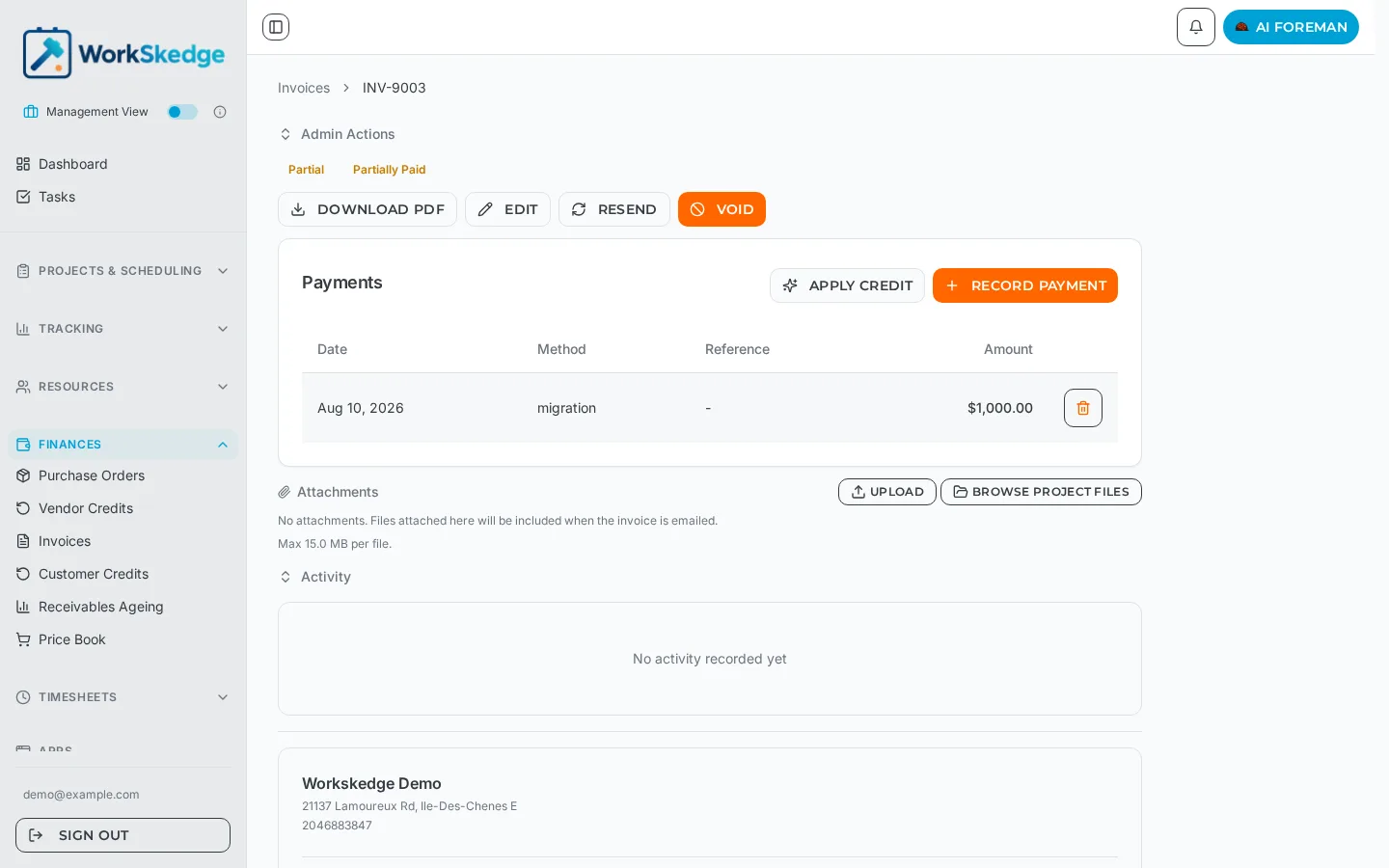
Steps
- 1To create a customer credit, open Finances > Customer Credits and create the credit for the customer, adding line items and optionally linking a project.
- 2Issue the credit so it counts toward the customer's available credit.
- 3Open the invoice you want to reduce and click Apply credit in the Payments panel.
- 4Enter the full amount or a partial amount — any remainder stays available for another invoice.
- 5For vendor credits, build the invoice as usual: open credits on the same project are pulled in as negative lines.
- 6Save the invoice — linked vendor credits move from Open to Applied.
Customer credits (credit memos)
A customer credit records money owed back to a customer — goodwill, a return, or a billing correction — and can be applied against one or more invoices.
- Create the credit. Choose the customer, optionally link it to a project, and add line items with quantity and unit price. Save it as a draft or issue it.
- Issue it. An issued credit increases the customer's available credit.
- Apply it. Open the invoice and click Apply credit in the Payments panel. You can apply the whole credit or part of it; the remainder stays available.
- Check the balance. The customer drawer shows an Available Credit tile with the unapplied total.
Applied credits appear on the invoice and on the invoice PDF next to payments, so the customer can see how the balance was reduced. A credit that settles an invoice in full marks it Paid, exactly like a cash payment.
Credit numbering (prefix, next sequence and padding, for example CCM-0002) is set in Finance Settings under Invoices.
Vendor credits
Vendor credits are money owed back to you by a supplier. They reach the customer invoice as negative line items:
- Open credits scoped to the same project appear alongside purchase orders when the invoice is built, and are pulled in automatically because they reduce the total.
- Each credit becomes one line described as
{credit number} (Credit)with quantity 1 and a negative unit price. - Saving the invoice moves the credit from Open to Applied. Voiding or deleting the invoice returns it to Open so it can be used again.
Vendor credits apply in full — partial application is not supported — and a credit can only sit on one invoice at a time.
Turning credits on
Customer credits require the Finances module with the Invoices (AR) feature enabled. If you cannot see Customer Credits in the Finances menu, that toggle is off.
Frequently asked questions
Can I apply part of a customer credit?
Yes. Apply as much as you want against one invoice; the remaining balance stays available and shows on the customer's Available Credit tile.
Can I apply part of a vendor credit?
No. Vendor credits are applied in full, and each credit can only be on one invoice at a time.
What happens to credits if I void the invoice?
Applied vendor credits revert to Open and become available for a future invoice.
Does a credit mark the invoice as paid?
If the credit settles the invoice in full, yes — the invoice is marked Paid and the invoice.paid webhook fires, the same as a cash payment.
Was this article helpful?
Still stuck?
Send us the article name and what you expected to happen.
Last verified August 31, 2026