
How do I choose which roles can open an app?
Short answer
Each installed app has an Access Control list. Tick the user roles that should be able to open it — Administrator is always included.
On this page
Open Apps → Installed Apps, click View Details on the app, then the Settings tab. Under Access Control you tick which user roles can access this app — Manager, Scheduler, Project Manager, Safety Manager, Office Administrator, Finance Coordinator, Site Lead and so on. Administrator is always ticked and cannot be removed. Roles you leave unticked will not see the app in their sidebar and cannot open it.
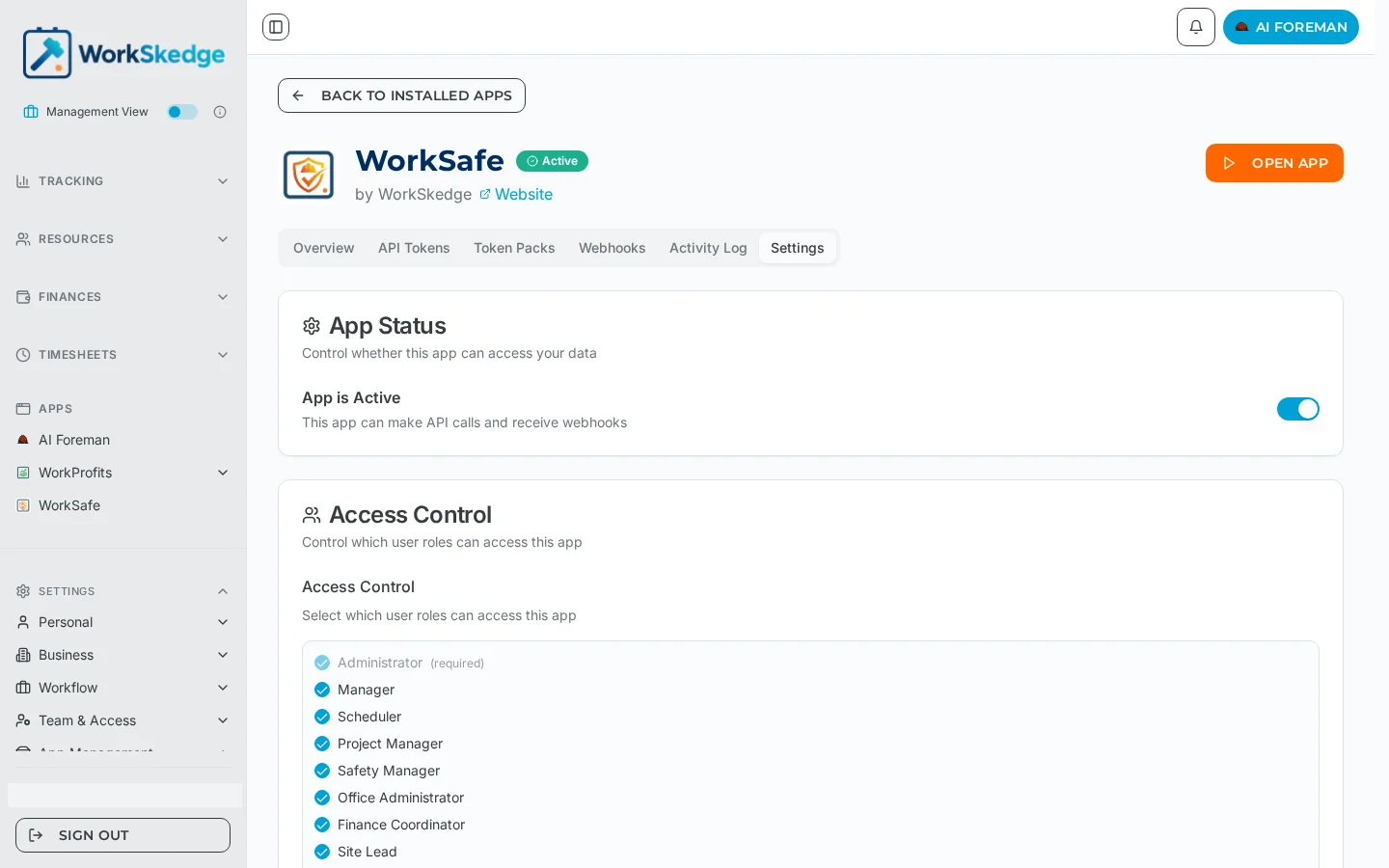
Before you start / permissions
- Administrator changes app access.
- Your role list comes from Company Settings → Roles, so create the role first if the one you want is missing.
- Access Control decides who can open the app. It does not change what the app itself can read or write — that was set by the permissions you approved at install.
Steps
- 1Open Apps → Installed Apps.
- 2Click View Details on the app.
- 3Open the Settings tab.
- 4Tick the roles that should be able to open the app under Access Control.
- 5Leave Administrator ticked — it is required.
- 6Untick any role that should not have access.
Steps
- Go to Apps → Installed Apps.
- Click View Details on the app.
- Open the Settings tab.
- Under Access Control, tick each role that should be able to open the app.
- Untick any role that should not see it. Administrator stays required.
- Changes apply to those users the next time they load WorkSkedge.
Notes and limits
- Role changes are pushed to the app too, so an app that renders different screens per role stays in sync.
- Removing a role does not delete anything the app has already created — it only removes access to the app screen.
- A user with several roles keeps access if any one of their roles is ticked.
Common errors
- A manager says the app is missing from their sidebar — their role is not ticked in Access Control, or the app is switched off.
- The role you want isn't listed — add it under Company Settings → Roles first, then come back.
- Access looks right but the app still won't open — check App Status on the same Settings tab; an inactive app cannot be used by anyone.
Frequently asked questions
Can I remove Administrator access to an app?
No. Administrator is marked required in Access Control and always keeps access.
Does Access Control limit what the app can read?
No. It only controls which users can open the app. The app's data permissions were approved during install.
What happens to a user whose role I untick?
The app disappears from their sidebar and they can no longer open it. Data the app created is untouched.
My role isn't in the list — why?
Access Control lists your company's roles. Create the role under Company Settings → Roles and it will appear.
Do I need to tell the app about a role change?
No. WorkSkedge notifies the app when the install configuration or its role list changes.
Was this article helpful?
Still stuck?
Send us the article name and what you expected to happen.
Last verified September 1, 2026