
How do I install an app from the App Catalog?
Short answer
Open Apps → App Catalog, choose an app and walk the three-step install wizard: app summary, the permissions and events it requests, then plan and confirm.
On this page
Go to Apps → App Catalog, find the app and click Install. A three-step wizard opens: App Summary (what the app does), the permissions and webhook events it is asking for, and Select Plan & Install where you confirm. When you install, WorkSkedge creates the installation record and issues that app its own API key and signing secret so it can work with your company data securely.
Before you start / permissions
- Administrator installs apps. The Administrator role always keeps access to an installed app.
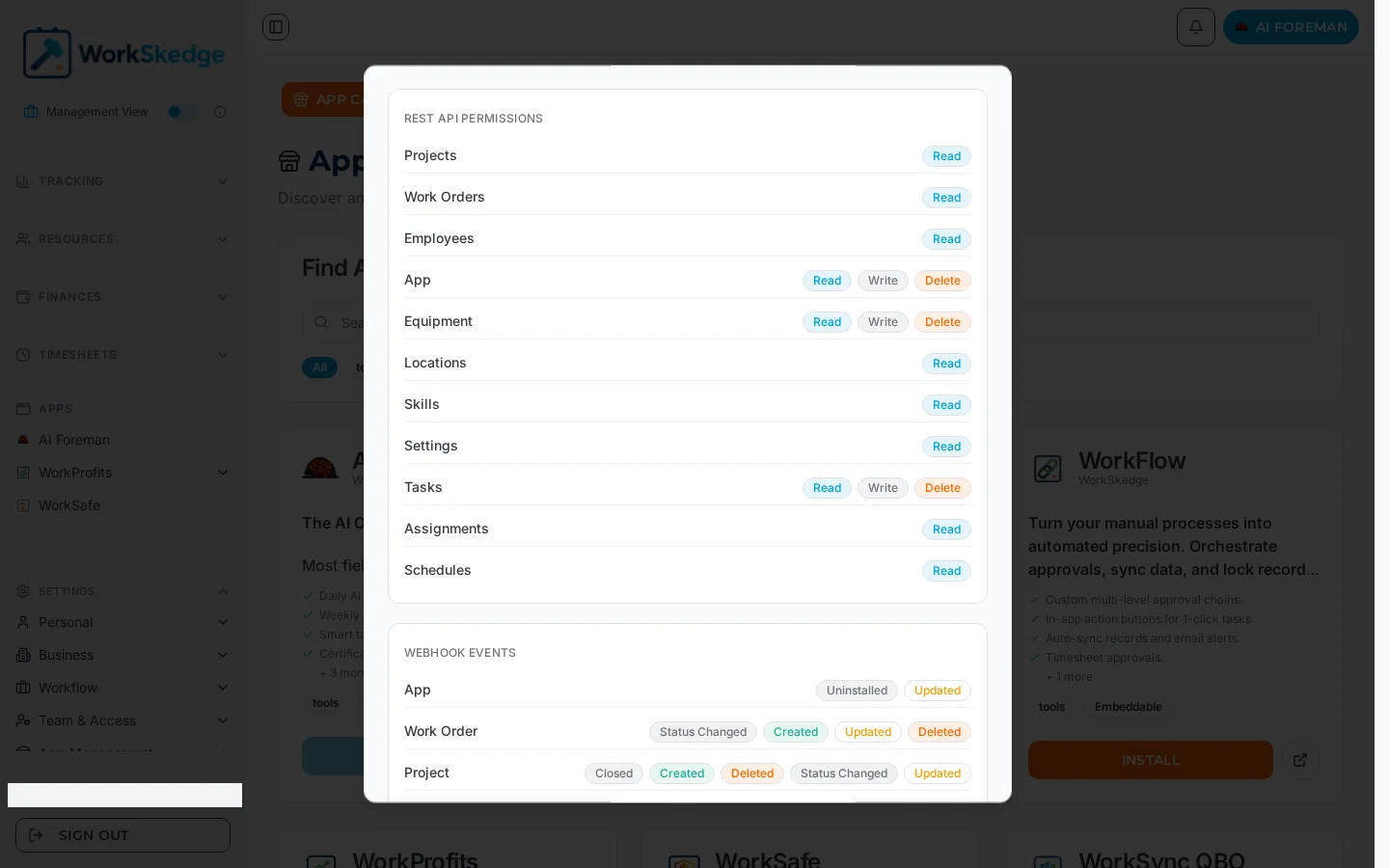
- Know what the app needs to touch — step 2 of the wizard is the full permission list, and it is worth reading.
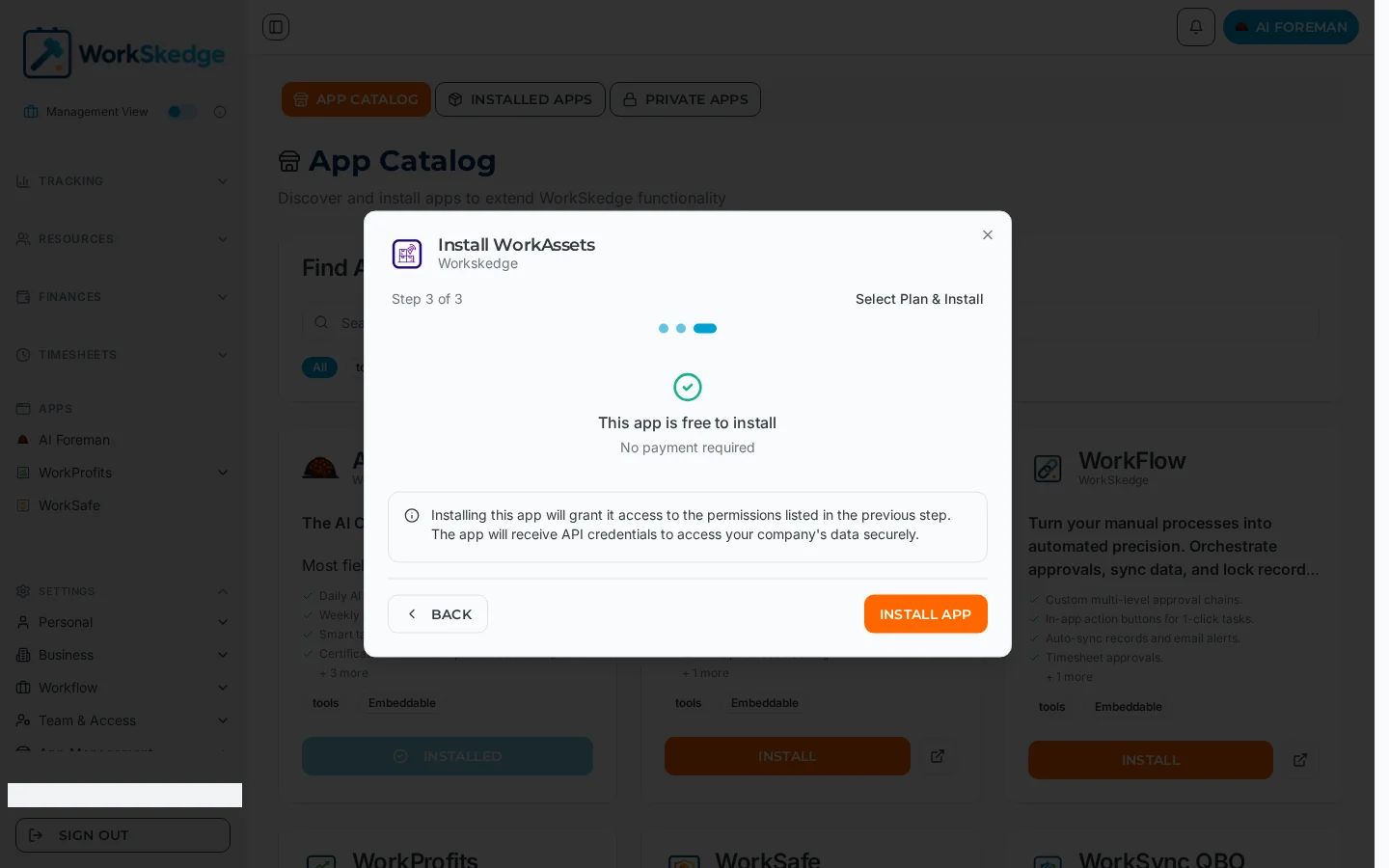
- Paid apps need a payment method on file; free apps show "This app is free to install — no payment required".
Steps
- 1Open Apps → App Catalog.
- 2Search or filter to find the app.
- 3Click Install on the app card.
- 4Step 1: read the App Summary.
- 5Step 2: review REST API permissions and webhook events.
- 6Step 3: confirm the plan and click Install App.
- 7Open the app from Installed Apps or the APPS section of the sidebar.
Steps
- Open Apps → App Catalog from the left sidebar.
- Search by name, or filter by
tools,financials-accountingorfield-operations-safety. - Click Install on the app's card.
- Step 1 — App Summary: read what the app does and which surfaces it supports.
- Step 2 — permissions: review REST API Permissions (Read / Write / Delete per data type such as Projects, Work Orders, Employees, Equipment, Tasks, Schedules) and Webhook Events (which changes the app is notified about).
- Step 3 — Select Plan & Install: confirm the price or the free notice, then click Install App.
- The app appears under Installed Apps and, if it is embedded, in the APPS section of the sidebar.
Notes and limits
- Installation issues credentials to the app: an API key for calls and a signing secret it uses to verify the users you send it.
- An app already installed shows a greyed-out Installed button in the catalog instead of Install.
- Vendors can also link straight to the install flow from their own website or an email; you land on the same wizard once signed in.
- Nothing in your existing data changes on install — the app only gains the access you approved.
Common errors
- No Install button, only "Installed" — the app is already installed; manage it from the Installed Apps tab.
- "App not available" — the link points at an app that is unpublished or removed; browse the catalog instead.
- Install link asks you to finish company setup — complete your company profile first, then reopen the link.
- The app opens but shows nothing — it may still be completing first-time setup on its side; check the app's own Activity Log from Installed Apps → View Details.
Frequently asked questions
Who can install an app?
An Administrator. The Administrator role also always retains access to the installed app.
What exactly am I approving in step 2?
Two things: the REST API permissions the app gets per data type (Read, Write, Delete) and the webhook events it will be notified about, such as work_order.created or project.status_changed.
Does installing an app cost money?
Only if the app is paid. Step 3 of the wizard states the price, or confirms the app is free with no payment required.
Can I change the permissions later?
The permission set belongs to the app. What you control after install is whether the app is active and which user roles can open it.
Where does the app appear after installing?
Under Apps → Installed Apps, and — for embedded apps — as its own item in the APPS section of the left sidebar.
Was this article helpful?
Still stuck?
Send us the article name and what you expected to happen.
Last verified September 1, 2026