
What can I configure in Company Settings?
Short answer
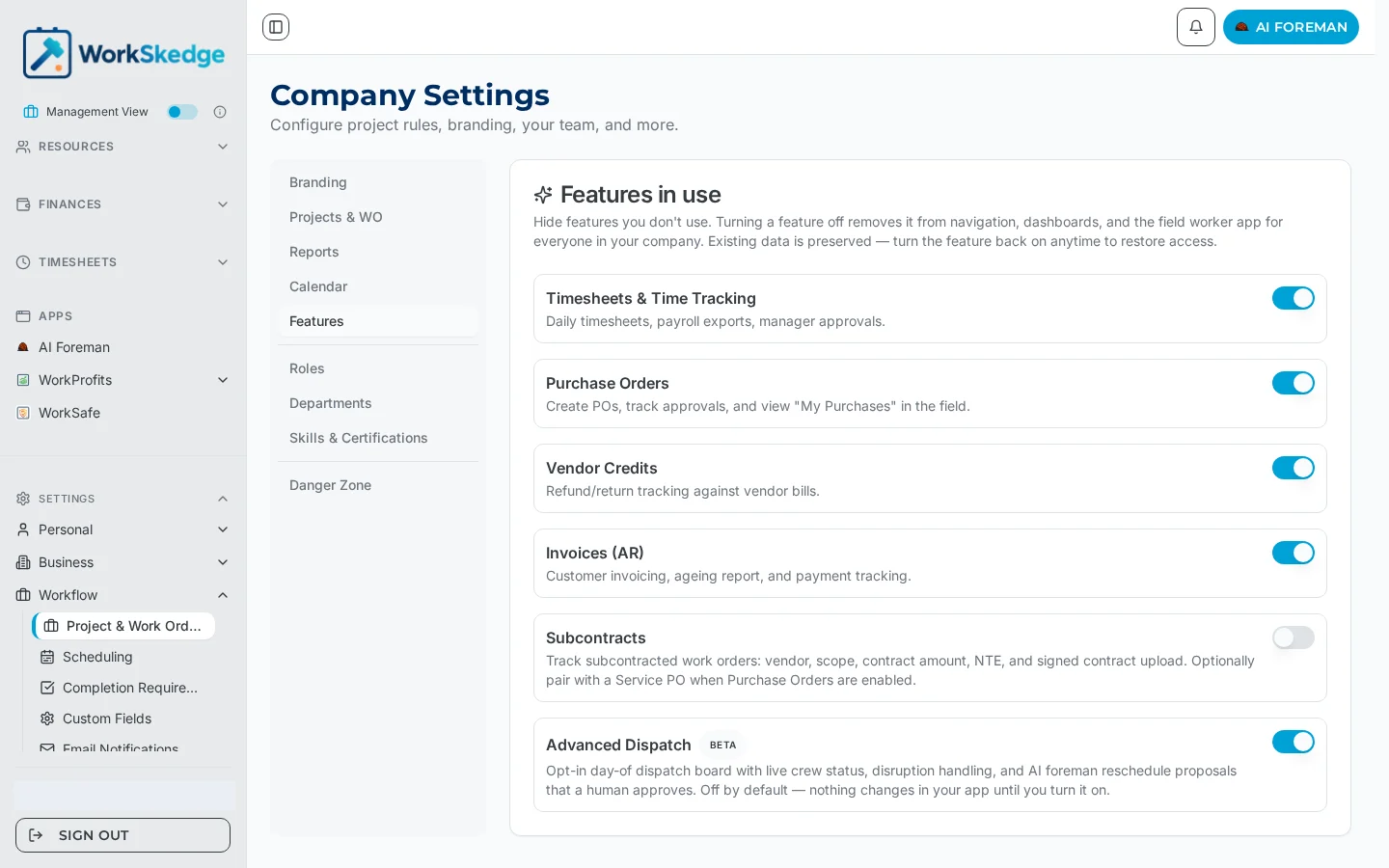
Company Settings holds branding, project and work order workflow rules, report requirements and reminders, the holiday calendar, feature toggles, roles, departments and skills.
On this page
Settings > Workflow > Project & Work Order Rules (/a/settings/company) is where you configure how projects, work orders, reports and your team structure behave. It is organised into tabs, each with its own direct link.
Before you start / permissions
- Administrator role required for every tab. Managers can read and write Project & Work Order Rules.
The tabs
- Branding (
?tab=branding) — company colours and logo used across the app, PDFs and customer-facing emails. - Workflow (
?tab=workflow) — project code format, project status mode (simple or advanced lifecycle), auto work order creation when a project is created, service call defaults, and who sees the Work Orders page. - Reports (
?tab=reports) — what must be filled in on progress and completion reports, and when reminder emails go out for missing reports. - Calendar (
?tab=calendar) — the company holiday calendar. Holidays can be added one at a time or uploaded by CSV, and are respected by scheduling and forecasting. - Features (
?tab=features) — turn whole features on or off for the company. - Roles (
?tab=roles) — role definitions and permissions. - Departments (
?tab=departments) — the department list applied to employees and used in reporting and filters. Each department can carry a colour (from a 12-colour palette or a hex value) used to colour-code its work orders on Forecasting and the project Gantt chart. - Skills & Certifications (
?tab=skills) — the skills library used for scheduling suitability and compliance tracking. Skills can be added individually or uploaded by CSV. - Danger Zone (
?tab=danger) — destructive company-level actions, Administrator only.
Notes and limits
- Project status mode decides whether projects use the simple lifecycle (active/closed) or the advanced one (lead, estimating, pending approval, approved, active, complete, closed). Change it deliberately — it changes the status options your team sees on every project.
- Departments are assigned to a work order from the work order form, not from this page.
- Report requirements set here are company-wide; per-work-order requirements live at
/a/settings/completion-requirements.
Frequently asked questions
Where do I change the project code format?
Settings > Workflow > Project & Work Order Rules > Workflow tab (/a/settings/company?tab=workflow). Project code settings control the format of generated project codes.
Can WorkSkedge create a work order automatically with each project?
Yes. The Auto work order setting on the Workflow tab creates a work order whenever a project is created.
How do I load our statutory holidays?
Use the Calendar tab. Holidays can be entered one at a time or uploaded by CSV, and scheduling and forecasting respect them.
Where do I require a daily or completion report?
Company-wide requirements and reminder timing are on the Reports tab; per-work-order completion requirements are at /a/settings/completion-requirements.
Why do departments have colours?
A department colour colour-codes that department's work orders on the Forecasting view and the project Gantt chart.
Was this article helpful?
Still stuck?
Send us the article name and what you expected to happen.
Last verified September 1, 2026