
How do I turn features on or off for my company?
Short answer
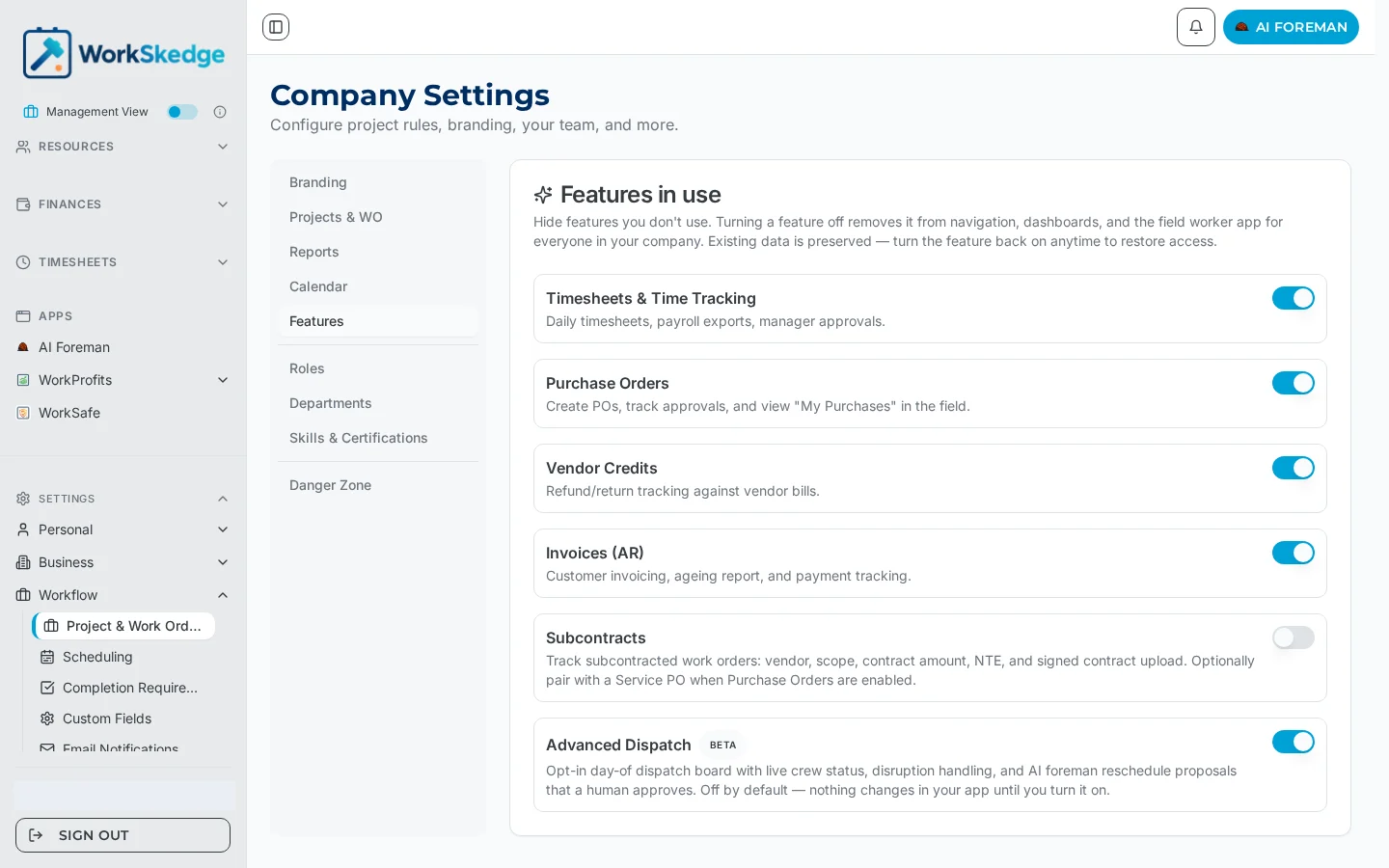
Features in use, on the Features tab of Company Settings, switches whole modules on or off for everyone. Turning one off hides it but keeps your data.
On this page
Company-wide feature toggles live at Settings > Workflow > Project & Work Order Rules > Features (/a/settings/company?tab=features). Turning a feature off removes it from navigation, dashboards and the field worker app for everyone in the company; existing data is preserved and returns when you switch it back on.
Before you start / permissions
- Administrator role required.
- A toggle labelled "Not in your plan" means the parent module is not in your subscription tier — upgrade at
/a/settings/billing.
Steps
- 1Open Settings > Workflow > Project & Work Order Rules.
- 2Select the Features tab (/a/settings/company?tab=features).
- 3Find the feature under Features in use.
- 4Switch the toggle on or off.
- 5For Purchase Orders, follow up at /a/settings/finances?tab=purchase-orders to set numbering, approval thresholds and field access.
What each toggle enables
| Toggle | Enables | Notes |
|---|---|---|
| Timesheets & Time Tracking | Daily timesheets, payroll exports, approvals | Requires Timesheets in your plan |
| Purchase Orders | POs, approvals, My Purchases | Requires Finances |
| Vendor Credits | Refunds and returns against vendor bills | Requires Finances |
| Invoices (AR) | Customer invoicing, ageing, payments | Requires Finances |
| Subcontracts | Subcontract work orders | Requires Finances; off by default |
| Advanced Dispatch | Live dispatch board, Advanced Scheduling workbench, draft plans, crew status, disruption and gate signals, crew compatibility scoring, customer SMS and email reminders | Requires Operate tier; off by default |
Notes and limits
- Feature toggles are company-wide, not per user. To limit who sees something within an enabled feature, use roles instead.
- Turning Purchase Orders on is only step one — numbering, approval thresholds and field-employee access are configured at
/a/settings/finances?tab=purchase-orders. - Advanced Dispatch is opt-in: nothing in your existing schedule changes until you enable it.
Common errors
- A feature is still missing after enabling it — users pick up navigation changes on their next page load; ask them to refresh.
- The toggle will not move — it is either outside your plan tier or you are not an Administrator.
Frequently asked questions
Do I lose data if I turn a feature off?
No. Turning a feature off removes it from navigation, dashboards and the field worker app, but existing data is preserved and reappears when you turn the feature back on.
Can I enable a feature for only some users?
No — feature toggles are company-wide. Use roles and permissions to control who can see and do what inside an enabled feature.
Why does Advanced Dispatch say it is off by default?
Advanced Dispatch is opt-in and requires the Operate tier. Nothing changes in your app until an Administrator enables it.
I enabled Purchase Orders but approvals are not working.
Approval thresholds, PO numbering and field-employee access are separate settings at /a/settings/finances?tab=purchase-orders.
Was this article helpful?
Still stuck?
Send us the article name and what you expected to happen.
Last verified September 1, 2026