
How do I add custom fields to projects and work orders?
Short answer
Define extra fields at Settings > Workflow > Custom Fields. Choose a name, a type and whether it applies to projects, work orders or both.
On this page
Custom fields let you track anything WorkSkedge does not ship as a standard field — permit numbers, lockbox codes, square footage, HOA approval. Define them at Settings > Workflow > Custom Fields (/a/settings/custom-fields), separated into Project Fields and Work Order Fields tabs, then fill them in on each record.
Before you start / permissions
- Administrator role required to create or edit definitions. Managers can also manage custom fields.
- Decide first whether the value belongs to the whole project or to one visit — that decides the Applies To setting.
Steps
- 1Open Settings > Workflow > Custom Fields (/a/settings/custom-fields).
- 2Choose the Project Fields or Work Order Fields tab.
- 3Click Add Field.
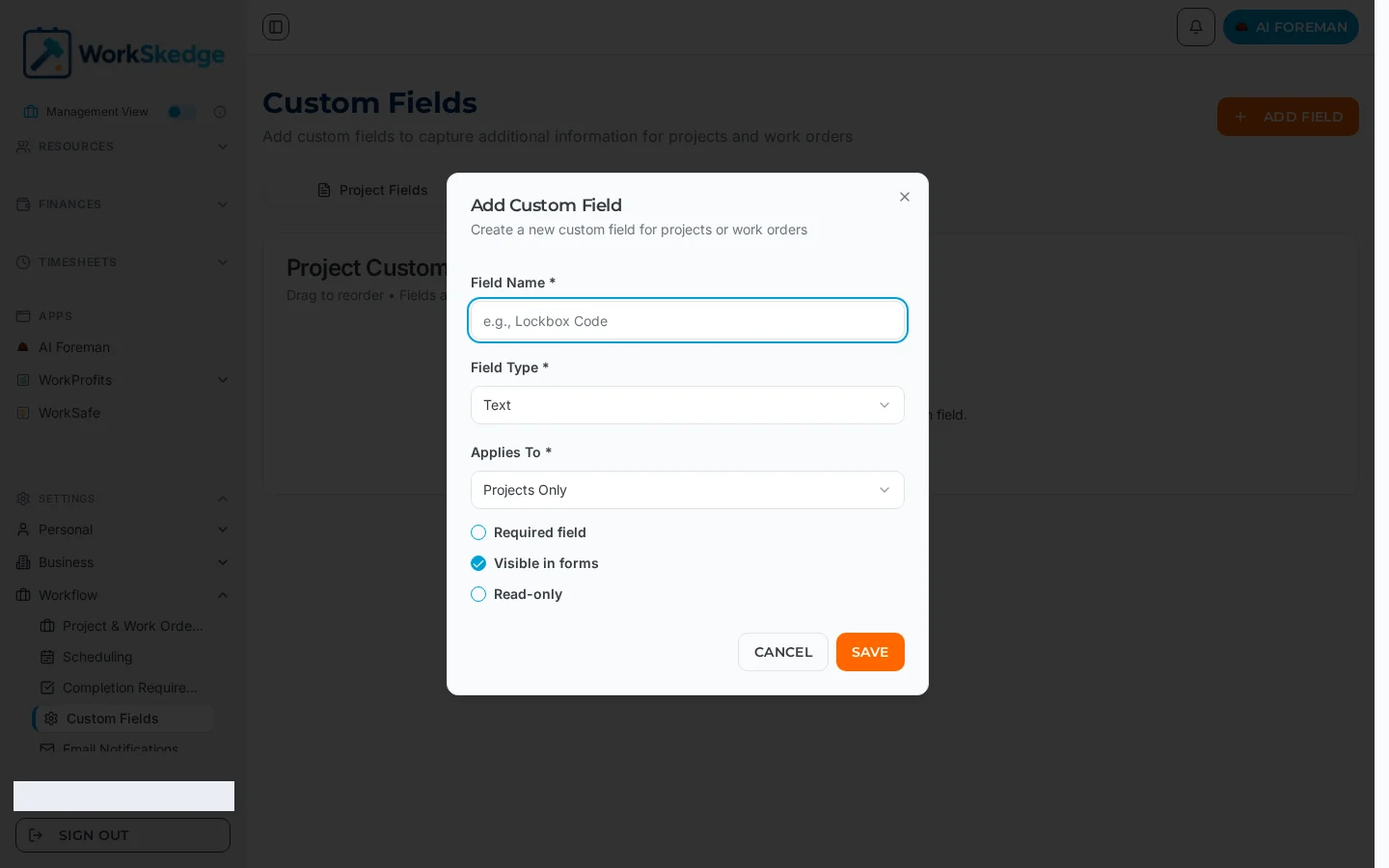
- 4Enter the Field Name, pick the Field Type and set Applies To.
- 5Optionally mark it required, visible in forms or read-only, and add dropdown options for a Dropdown field.
- 6Click Save, then drag fields to set the order they appear on forms.
What to fill in
Required:
- Field Name — the display label, e.g. "Permit Number".
- Field Type — Text, Number, Dropdown, Date, File Link or Checkbox.
- Applies To — Projects only, Work Orders only, or both.
Optional: Required field, Visible in forms, Read-only, display order (drag to reorder), and dropdown options for the Dropdown type.
The field key is generated automatically from the name — lowercased, spaces to underscores, special characters removed ("Permit Number" becomes permit_number) — and must be unique within your company.
Field types
| Type | Use it for | Behaviour |
|---|---|---|
| Text | Permit numbers, reference IDs, external system IDs | Single-line text |
| Number | Budget amounts, square footage, counts | Numbers only, decimals allowed |
| Dropdown | Project type, priority, custom classifications | Pick one of the options you define; no free text |
| Date | Milestones, deadlines, warranty expiry, inspections | Date picker |
| File Link | A link to a document in external storage | Stores a URL — it is not a file upload |
| Checkbox | HOA approval required, permit approved | Yes/no, defaults to unchecked |
Notes and limits
- Custom field values are stored per record, so renaming a definition does not lose existing values.
- Dropdown users cannot type a value that is not in your option list — add the option first.
- File Link stores a link only. For real files, use project documents and work order attachments.
- Projects and work order lists can be filtered by custom field values using a stacked rule builder.
Common errors
- The field does not appear on the form — check it is marked visible, and that Applies To covers the record type you are looking at.
- Two fields collide — field keys must be unique in the company; two names that reduce to the same key are not allowed.
Frequently asked questions
What field types are available?
Text, Number, Dropdown, Date, File Link and Checkbox. Dropdown fields use an option list you define; File Link stores a URL rather than an uploaded file.
Can one custom field apply to both projects and work orders?
Yes. Applies To accepts projects, work orders, or both.
Can I make a custom field mandatory?
Yes — mark it as a required field when creating or editing the definition.
Can I filter projects by a custom field?
Yes. The Projects and work order lists use a rule builder so you can stack conditions on custom field values.
Who can create custom fields?
Administrators, and Managers, have read/write access to custom fields. Other roles can only fill them in on records.
Was this article helpful?
Still stuck?
Send us the article name and what you expected to happen.
Last verified September 1, 2026