
How do I choose who receives each email notification?
Short answer
At Settings > Workflow > Email Notifications you pick, per event, which role groups, contextual people and extra addresses get the email.
On this page
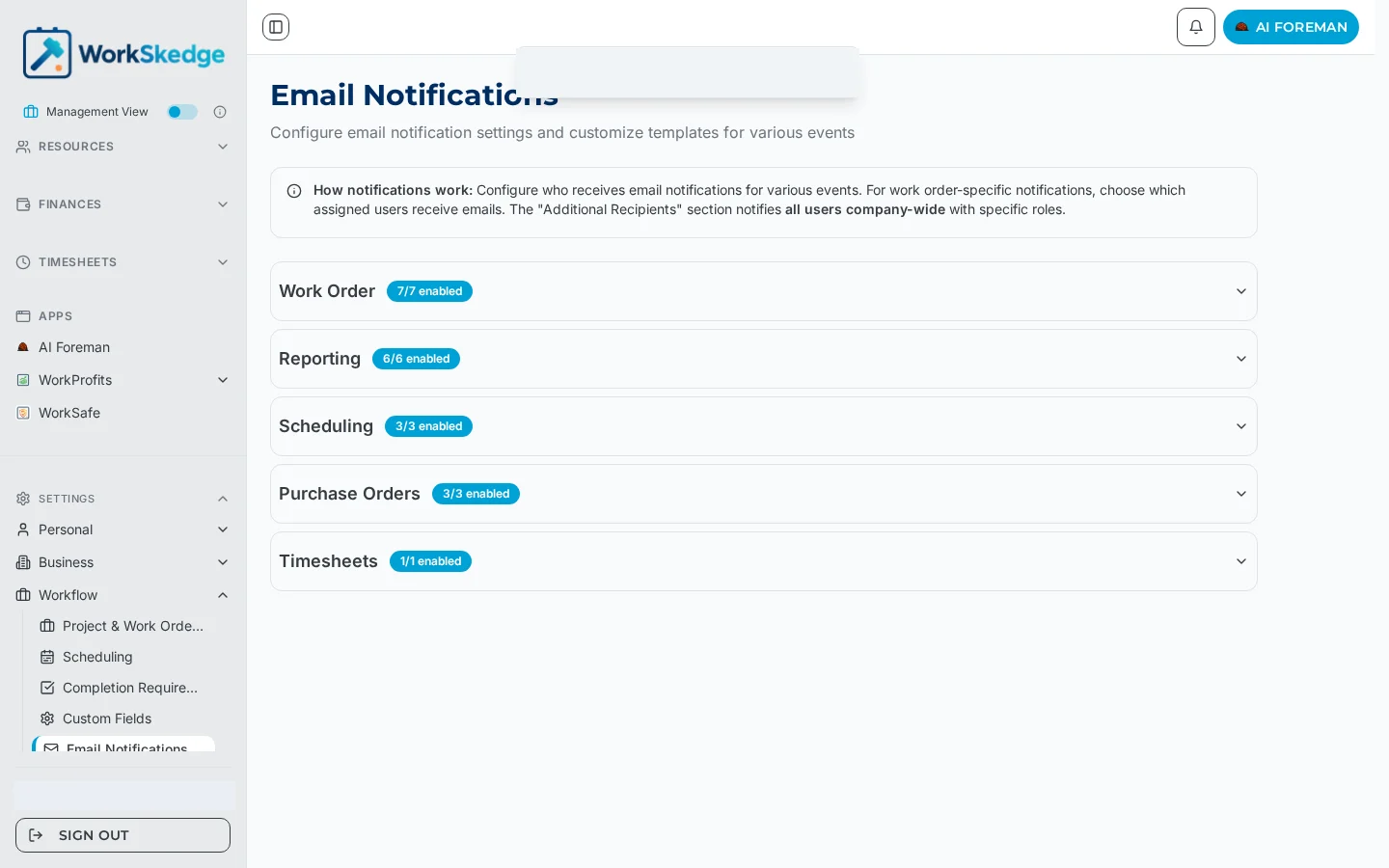
WorkSkedge sends a defined set of system emails, and you choose the recipients for each one at Settings > Workflow > Email Notifications (/a/settings/email-notifications). Recipients can be selected by role group, by their relationship to the record, or as explicit custom addresses.
Before you start / permissions
- Administrator role required.
- Events are grouped on the page (Work Order, Reporting, Scheduling, Purchase Orders, Timesheets), with a count of how many are enabled in each group.
Steps
- 1Open Settings > Workflow > Email Notifications (/a/settings/email-notifications).
- 2Expand the group that holds the event — Work Order, Reporting, Scheduling, Purchase Orders or Timesheets.
- 3Find the event row and enable or disable it.
- 4Select the role audiences that should receive it.
- 5Add contextual recipients such as project owner, site lead, estimator or submitter.
- 6Add any custom email addresses, then save.
Events you can control
- Project Lead Created, Project Approved, Project Complete, Project Closed
- Employee Assignment Change
- Completion Report Submitted / Approved / Rejected / Reminder
- Progress Report Submitted, Daily Progress Report Reminder
- PO / Reimbursement Needs Approval / Approved / Rejected
- Timesheet Reminder
Who you can send to
- Role audiences — All Administrators, All Managers, All Project Managers, All Schedulers, All Site Leads, All Finance Coordinators, All Safety Managers, All Office Administrators. These notify every user company-wide with that role.
- Contextual audiences — project owner, site lead, estimator, and the submitter of the record. These resolve per record, so only the people attached to that job are emailed.
- Custom recipients — any additional email addresses, useful for a shared inbox.
Notes and limits
- Role audiences are company-wide; contextual audiences are the way to keep an email to the crew on that job.
- Task notifications (in-app and push) are configured separately at
/a/settings/task-notifications. - Events for a disabled feature are irrelevant — for example PO approval emails only matter with Purchase Orders enabled.
Common errors
- A group stopped receiving an email — check that event's row first. A disabled role audience is the most common cause; assignment emails commonly stop when the assignment/calendar-invite audience is switched off.
- Too many people are being emailed — you likely used a role audience where a contextual audience (project owner, site lead, submitter) was intended.
Frequently asked questions
Which emails can I control?
Project lead created, approved, complete and closed; employee assignment change; completion report submitted, approved, rejected and reminder; progress report submitted and daily reminder; PO and reimbursement needs approval, approved and rejected; and the timesheet reminder.
Can I email only the people on that job?
Yes. Contextual audiences — project owner, site lead, estimator and the submitter — resolve per record, so only the people attached to that job are emailed.
Can I send a copy to a shared inbox?
Yes. Add it under custom recipients for that event.
Our team stopped getting assignment emails. What changed?
Check that event's row on this page. A disabled role audience is the most common cause — assignment emails often stop when the assignment audience is switched off.
Are in-app and push notifications set here too?
No. Task notifications, including priority, audience, expiry and push, are configured at /a/settings/task-notifications.
Was this article helpful?
Still stuck?
Send us the article name and what you expected to happen.
Last verified September 1, 2026