
How do I fix scheduling conflicts, double-bookings and time-off overlaps?
Short answer
WorkSkedge flags conflicts as you build a schedule and offers four ways to resolve each one: unassign, reassign, acknowledge, or adjust the times.
On this page
Conflicts are detected in real time while you build a schedule, not after you save. Each conflicting day is tracked independently, so a five-day assignment with trouble on days two and four can be resolved day by day.
Steps
- 1Open the schedule or Dispatch Board and add employees to the work order
- 2Watch for red conflict badges on the employee timeline
- 3Open the conflicts panel in the sidebar to see every conflict at once
- 4Pick a resolution per conflicting day: unassign, reassign, acknowledge, or adjust times
- 5For time-off overlaps, move the dates or choose another employee
- 6Save or commit the schedule once no unresolved conflicts remain
What counts as a conflict
- Cross work order double-booking — the same employee on overlapping dates across different work orders. This is a true conflict and needs resolution.
- Time-off overlap — the assignment lands on approved time off.
- Date conflict — the assignment falls outside the work order's own start and end dates. This is a validation error.
- Same-day booking — several assignments on the same day with non-overlapping times. This is informational only (blue badge), not an error.
Resolution options
When a conflict is flagged you can:
- Remove from this work order — unassign the person from the new work order.
- Reassign from the other work order — free them up by removing the conflicting assignment.
- Keep both (acknowledge) — accept the double-booking deliberately.
- Adjust the times — edit both assignments so the hours no longer overlap.
Adjusting times is only offered for work-order conflicts. It is not available for time-off conflicts — those must be resolved by moving the work or choosing someone else.
Notes and limits
- Conflicts appear as a red badge on the employee's timeline bar, with details in the tooltip and a conflicts panel in the sidebar.
- Resolving one day of a multi-day assignment does not affect the other days.
- After applying a time adjustment, the conflict clears only if the new times genuinely no longer overlap.
- Temporary employees are handled separately and should not raise false conflicts.
- Overriding a warning from the Dispatch Board requires a typed reason, stored on the audit trail.
Frequently asked questions
Is a same-day double booking an error?
No. Multiple assignments on the same day with non-overlapping times are informational and shown with a blue badge. Only overlapping dates across different work orders are treated as true conflicts.
Can I adjust times to resolve a time-off conflict?
No. Time adjustment is only offered for work-order conflicts. A time-off overlap has to be resolved by moving the work, unassigning, or picking a different employee.
Can I schedule someone over their approved time off anyway?
Yes, with an override. Time-off overlaps are warnings on the Dispatch Board, but you must acknowledge the conflict and record a reason, which is stored on the audit trail.
What if only some days of a multi-day assignment conflict?
Each day is tracked and resolved independently — clean days show a check, conflicting days show a warning, and resolving one day does not change the others.
Where can I see all conflicts before committing?
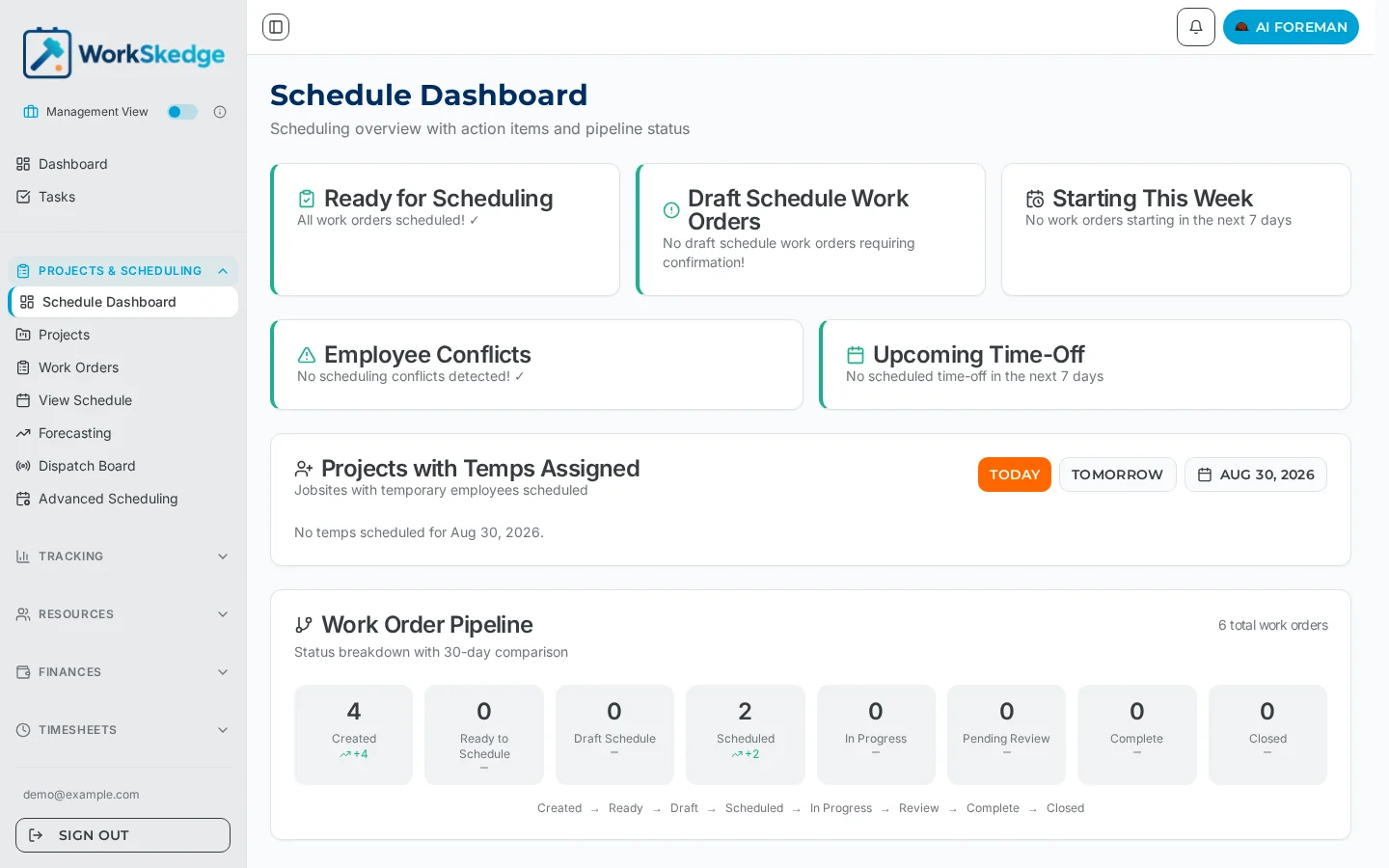
The conflicts panel in the scheduling sidebar lists every conflict in the plan, and the Schedule Dashboard summarises employee conflicts and upcoming time off before you open a board.
Was this article helpful?
Still stuck?
Send us the article name and what you expected to happen.
Last verified August 31, 2026