
Add an employee and complete their profile
Short answer
Walk through the three-step Add Employee wizard in WorkSkedge: which fields are required, how employee numbers are generated, and how travel availability changes what the scheduler will offer that person.
On this page
Before you start
Creating employees is an Administrator or Manager task. Have the person name, email address and the role you want them to hold ready. If the role or the department does not exist yet, you can create it from inside the wizard - both dropdowns include a Create New option.
Steps
- 1Open Employees under Resources in the sidebar.
- 2Click Add Employee to start the three-step wizard.
- 3On Basic Info enter the name, email, phone and role - leave Employee Number blank to auto-generate it.
- 4Optionally pick a department and set the start date, then click Next.
- 5On Personal & Emergency add the address, travel availability, home base and emergency contacts.
- 6Click Next, set the designation flags for project manager, site lead or site worker, then save.
- 7Open the new record and use Invite when the person needs a login.
What to fill in
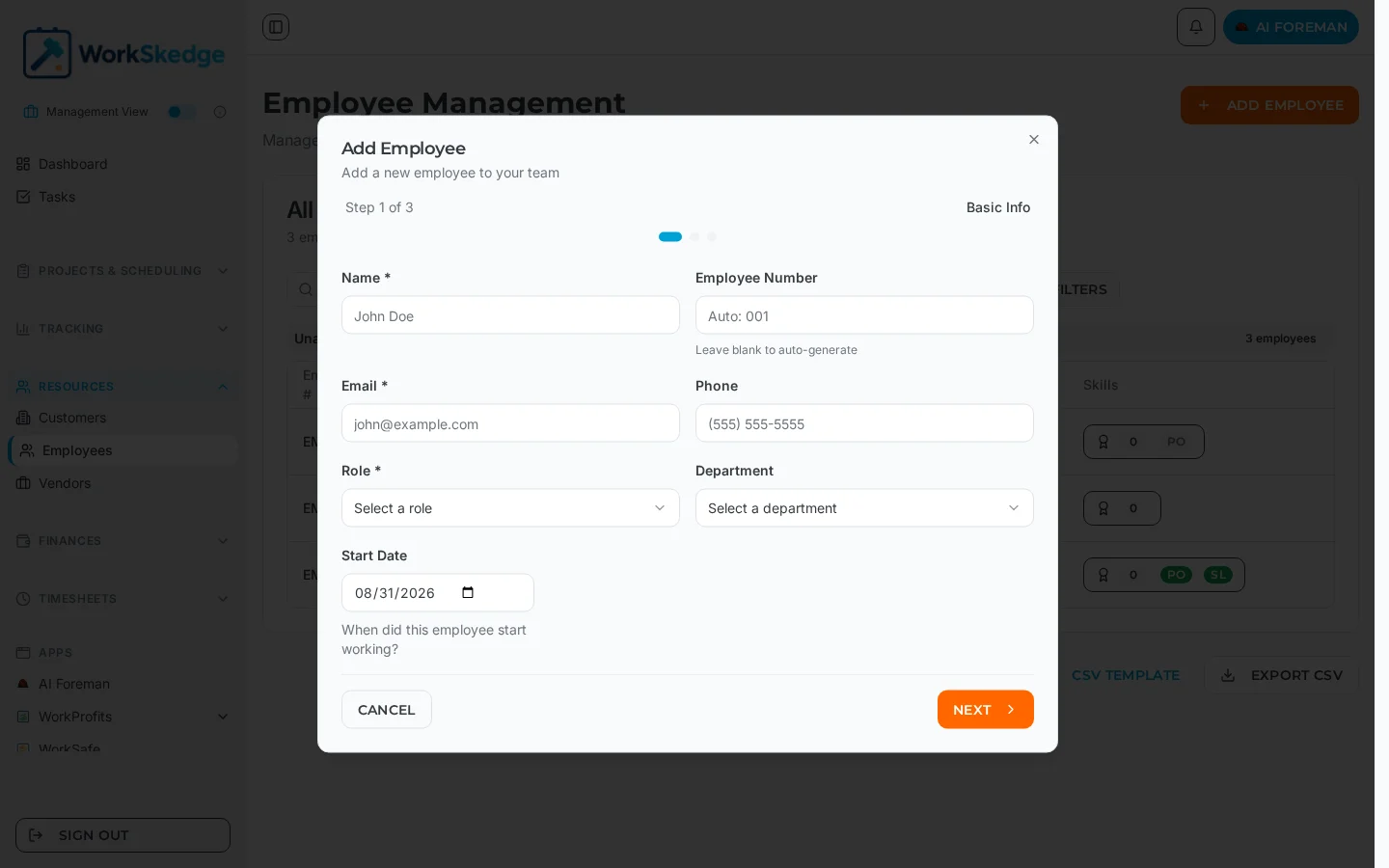
Step 1 - Basic Info
- Name - required.
- Employee Number - leave it blank and WorkSkedge auto-generates one. Employee numbers are unique inside your company.
- Email - required, and unique inside your company. This is the address an invitation is later sent to.
- Phone - stored as 10 digits; any formatting you type is stripped. The country dial code defaults to +1 and can be set to +61 for Australia.
- Role - required. This is what drives what the person sees when they sign in.
- Department - optional grouping used across lists and filters.
- Start Date - when the person started working.
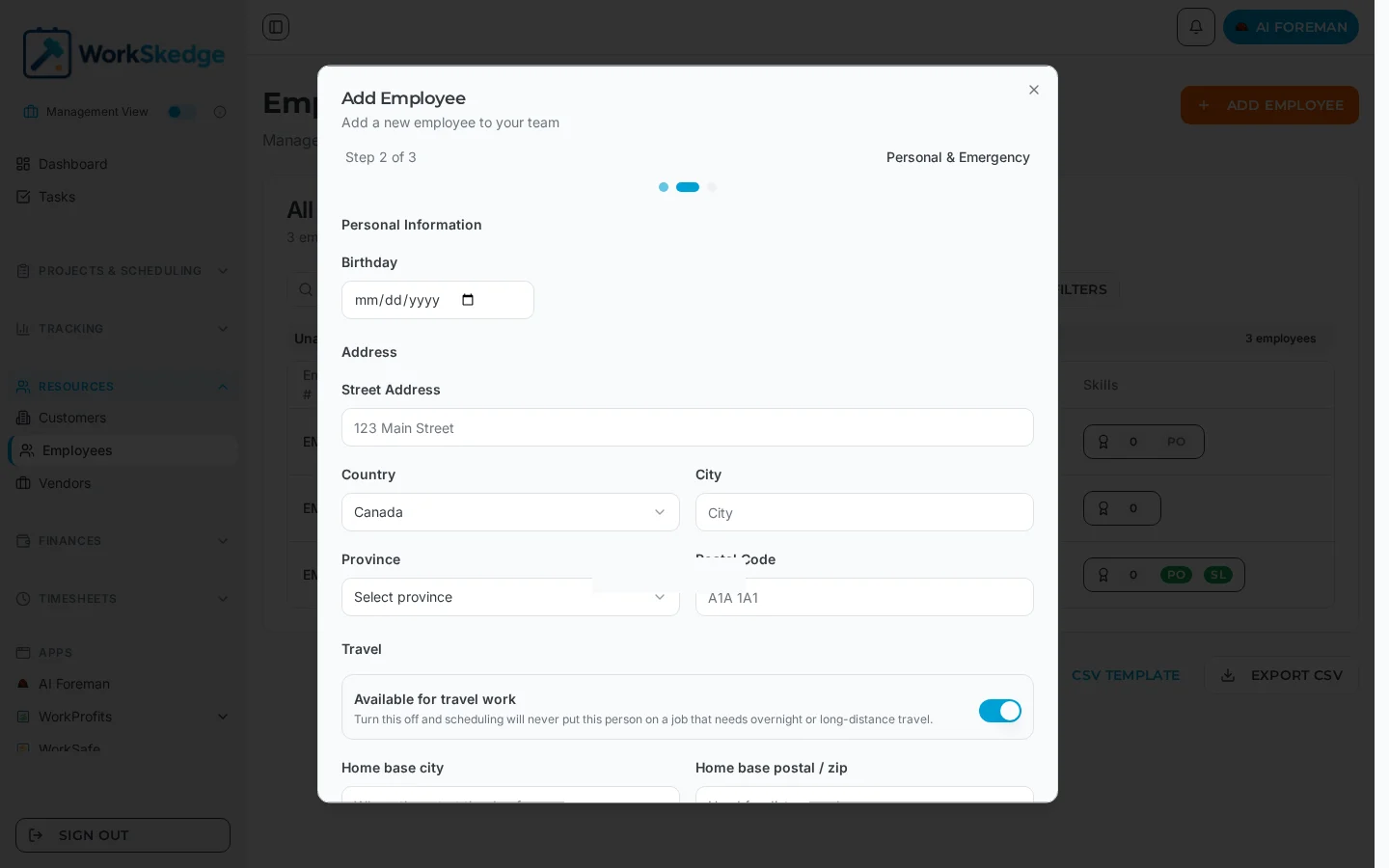
Step 2 - Personal & Emergency
Birthday, street address, country, city, province or state and postal code, travel settings, and emergency contact details.
Step 3 - Designations
The employee type flags that control where the person can be assigned: project manager, site lead and site worker.
Notes and limits
- Available for travel work is on by default. Turn it off and scheduling will never place that person on a job that needs overnight or long-distance travel - it is a hard block, not a warning.
- Home base city and postal code let the scheduler measure the distance to a job site, which is how a job gets classified as away work.
- Site worker is the flag that matters for timesheets: when the timesheets module is on, site workers can be invited to create a login and submit their own daily time.
- Creating the employee record does not create a login. The invitation is a separate step from the employee record.
Common errors
- Email already exists - another employee record in your company already uses that address. Search the roster before creating a duplicate.
- The phone number is rejected - the field expects exactly 10 digits once formatting is stripped. Extensions and country prefixes do not belong in it.
- Role is required - you cannot save step 1 without picking a role. Use Create New Role if none of the existing ones fit.
What it looks like in WorkSkedge
Frequently asked questions
Do I have to type an employee number?
No. Leave the field blank and WorkSkedge generates the next one for you. Numbers stay unique inside your company.
Does adding an employee send them a login?
No. The employee record and the user account are separate. Open the record and use Invite when they need access.
What happens if I turn off Available for travel work?
That person is hard-blocked from jobs the scheduler classifies as travel or away work. They stay fully available for local jobs.
Why does WorkSkedge ask for a home base city and postal code?
So the scheduler can measure distance from where the person actually travels out of to the job site, which is how away work is detected.
Can one person be both a site lead and a site worker?
Yes. The designation flags are independent, and roles stack the same way - the person gets the combined access.
Was this article helpful?
Still stuck?
Send us the article name and what you expected to happen.
Last verified August 31, 2026