
Record and approve time off
Short answer
Log vacation, sick leave and partial days for your crew, approve or reject requests, and understand how approved time off blocks scheduling and timesheets.
On this page
Before you start
Employees can view and create their own requests and cancel their own pending ones. Managers can see every request, approve or reject pending ones, cancel any request, and filter by employee, status or date range.
Steps
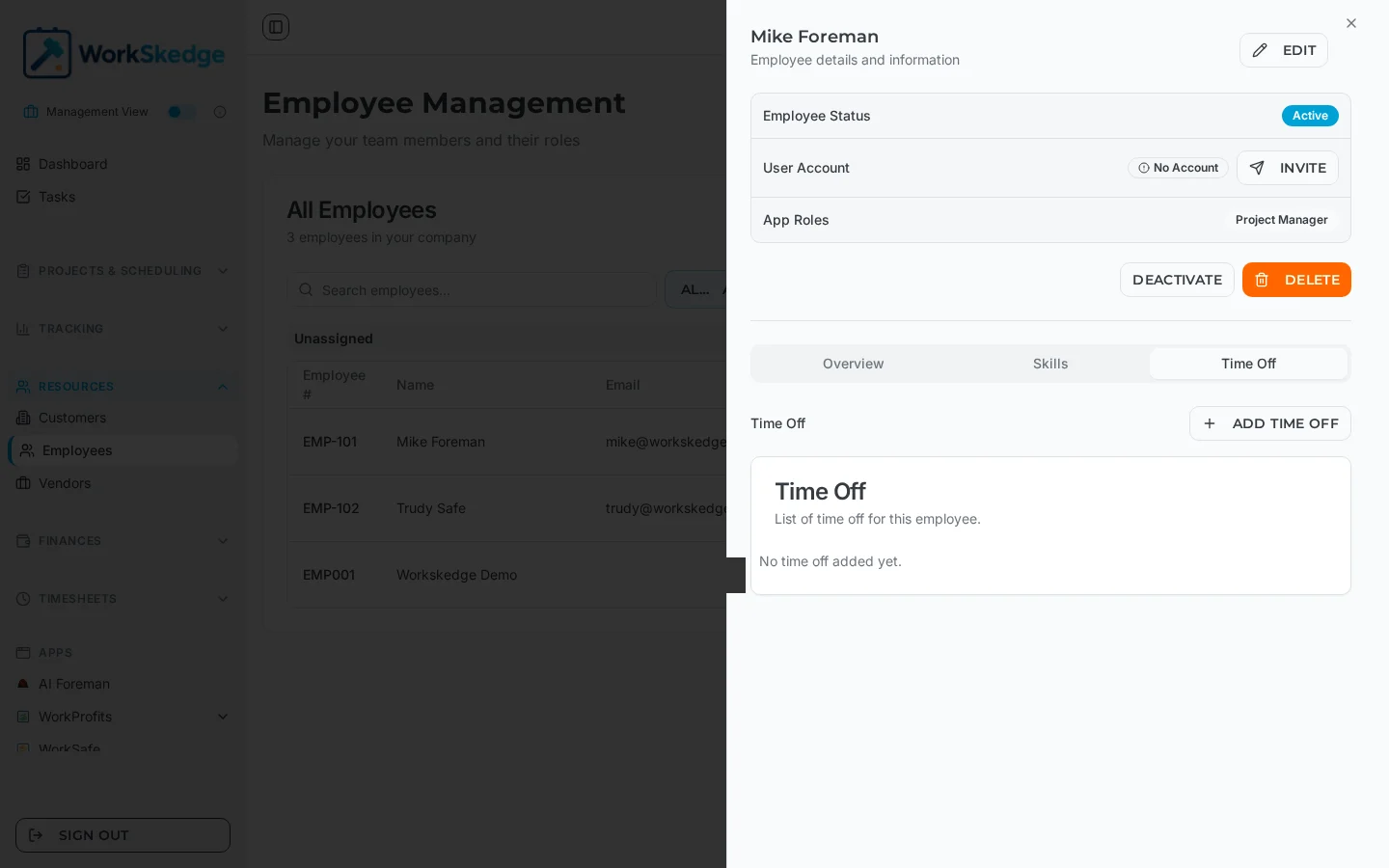
- 1Open Employees under Resources and click the person.
- 2Open the Time Off tab on their detail panel.
- 3Click Add Time Off and choose the type.
- 4Set the start and end dates - leave the times empty for full days.
- 5For a partial day, set the start and end times as well.
- 6Add notes covering the reason and any coverage arrangements, then save.
- 7As a manager, review pending requests, check for scheduling overlaps, and approve or reject.
Time-off types
vacation, sick leave, personal day, holiday, unpaid, training, and other.
Status flow
pending -> approved
pending -> rejected
pending or approved -> cancelled
Only approved time off affects scheduling and timesheets. Pending and rejected requests do not block anything.
What to fill in
- Type - from the list above.
- Start date and end date - the end date is inclusive.
- Start time and end time - leave both empty for a full day. Fill them in for a half day, an appointment or a late start.
- Notes - reason, contact details while away, coverage arrangements.
A multi-day absence is simply a start date earlier than the end date; the person is unavailable across the whole range.
What approved time off changes
- Scheduling conflicts - assignments that overlap approved time off are flagged with their own time-off indicator, separate from ordinary double-booking. You can pick a different person, change the assignment dates, or cancel the time off.
- Availability filtering - the show-only-available filter hides people with approved time off in the date range. People with pending or rejected requests still appear.
- Timesheets - timesheets are not auto-created for days covered by approved time off, so nobody is chased for time they were never expected to work.
Notes and limits
- Time off appears on the employee timeline in its own style, and hovering shows the type, dates and notes.
- Cancelling approved time off frees the days immediately and removes the conflict flag on any overlapping assignment.
- Balance and accrual tracking is not part of time off today - the record is the dates, not a running allowance.
Frequently asked questions
How do I record a half day?
Use the same start and end date and fill in the start and end times, for example leaving at 2 PM.
Does pending time off block scheduling?
No. Only approved time off flags conflicts and removes the person from the available-employees filter.
Can I still assign somebody who is on approved time off?
Yes, but you get a distinct time-off conflict warning. Emergency coverage is possible - document the reason in the notes.
Will WorkSkedge still ask for a timesheet on a day off?
No. Timesheets are not auto-created for days with approved time off.
Who can cancel a request?
Employees can cancel their own pending or approved requests. Managers can cancel any request, and should note why.
Does WorkSkedge track remaining vacation days?
Not today. Time off records the dates and type; it does not maintain an accrual balance.
Was this article helpful?
Still stuck?
Send us the article name and what you expected to happen.
Last verified August 31, 2026