
Signing in, invitations and user accounts
Short answer
You get access to WorkSkedge by being invited. An administrator or manager creates your employee record and assigns roles, the system emails an invitation, and you set a password when you accept. Your login is then permanently linked to that employee record.
On this page
Before you start
Only an Administrator or a Manager can invite people. Administrators can assign any role including Administrator; Managers can assign every role except Administrator. Every employee must have at least one role.
Steps
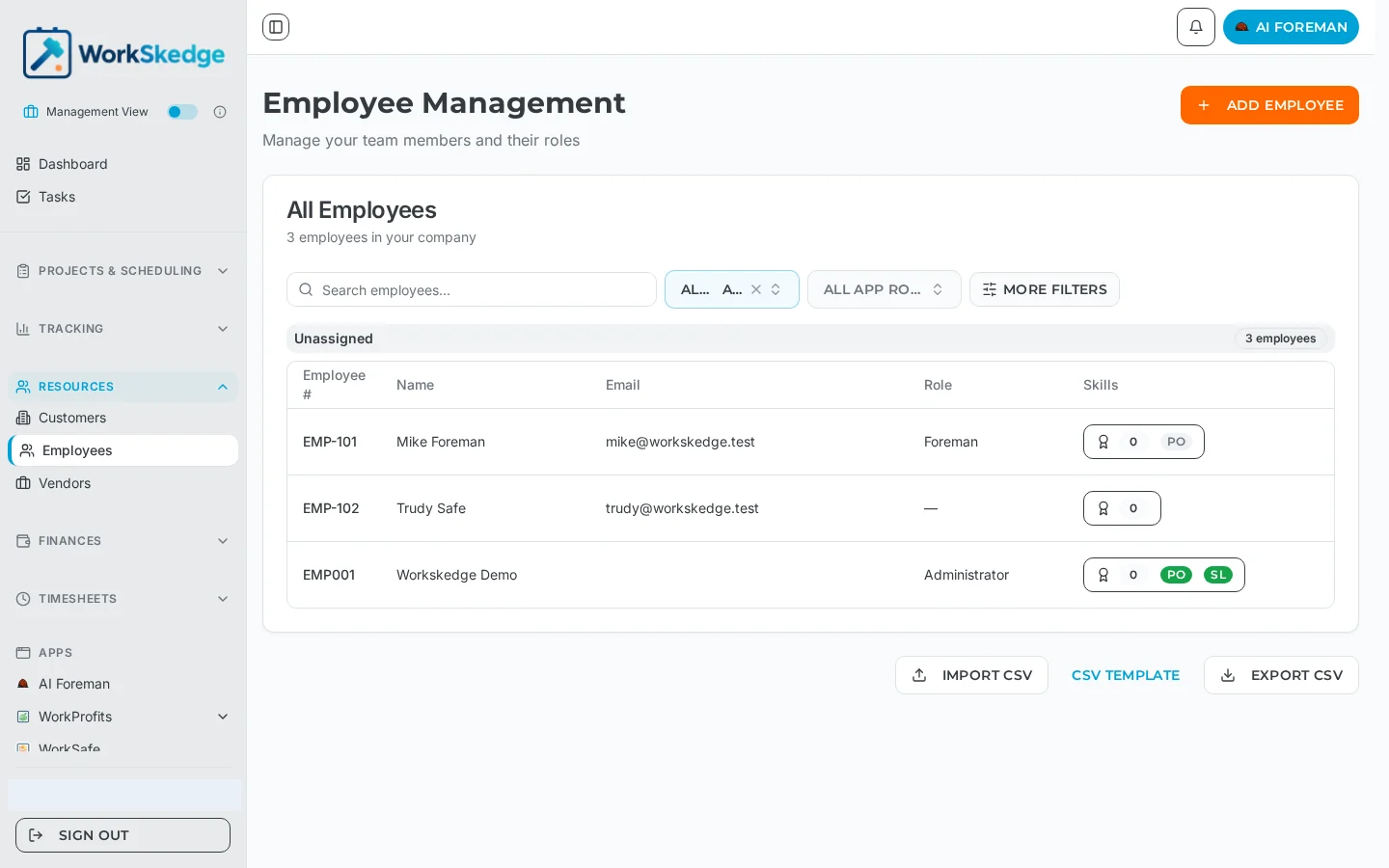
- 1Open Employees from the Resources menu.
- 2Click Add Employee and enter the person''s name, email and phone.
- 3Select one or more roles from the role checkbox group.
- 4Save the employee record to send the invitation email.
- 5Ask the employee to open the invitation link and set their password.
- 6Confirm the employee now shows a linked user account on their record.
How the invitation flow works
- An Administrator or Manager creates the employee record with name, email and phone.
- They select one or more roles from the role checkbox group, which is grouped by Management, Office and Field.
- The system sends an invitation email to that address.
- The employee clicks the link and creates their password.
- Their user account is linked to the employee record and the assigned roles are synced automatically.
Notes and limits
- One employee, one login. Each employee record can have at most one user account, and each user account is linked to at most one employee.
- Roles live on the employee record. Change them there and the permissions update immediately — no logout or login required. The change appears on the next page load.
- Roles are company-scoped. The same person can belong to more than one company with different roles in each.
- Multiple roles stack. A user holding two roles gets the union of both permission sets.
Common errors
- "Email already exists" — each email must be unique inside the company. Check whether an employee record already uses it before creating another.
- The invitation never arrived — confirm the email on the employee record is correct, then re-send the invitation. Ask the person to check spam.
- Signed in but the navigation looks empty — the account has no role, or a role with narrow access. An Administrator can add roles on the employee record.
Frequently asked questions
Can someone sign up for our company on their own?
No. Access is invitation-only. An Administrator or Manager has to create the employee record and send the invitation before an account can exist.
Do I have to update permissions in two places?
No. Roles are assigned on the employee record and are synced to the user account automatically by the system.
Can one person hold more than one role?
Yes. Multi-role users receive the combined permissions of every role they hold — for example Manager plus Site Lead.
What happens to the person who registers the company?
They get an employee record automatically and are assigned the Administrator role so they can complete company setup, and a 30-day sandbox period begins.
Does a role change require signing out?
No. The change takes effect immediately and their navigation updates on the next page load.
Was this article helpful?
Still stuck?
Send us the article name and what you expected to happen.
Last verified August 31, 2026