
Find your way around WorkSkedge
Short answer
The left sidebar groups everything by function — Projects & Scheduling, Tracking, Resources, Finances, Timesheets, Apps and Settings — and the Settings hub splits into Business, Workflow, Team & Access and Advanced. What you see depends on your roles and on which features your plan includes.
On this page
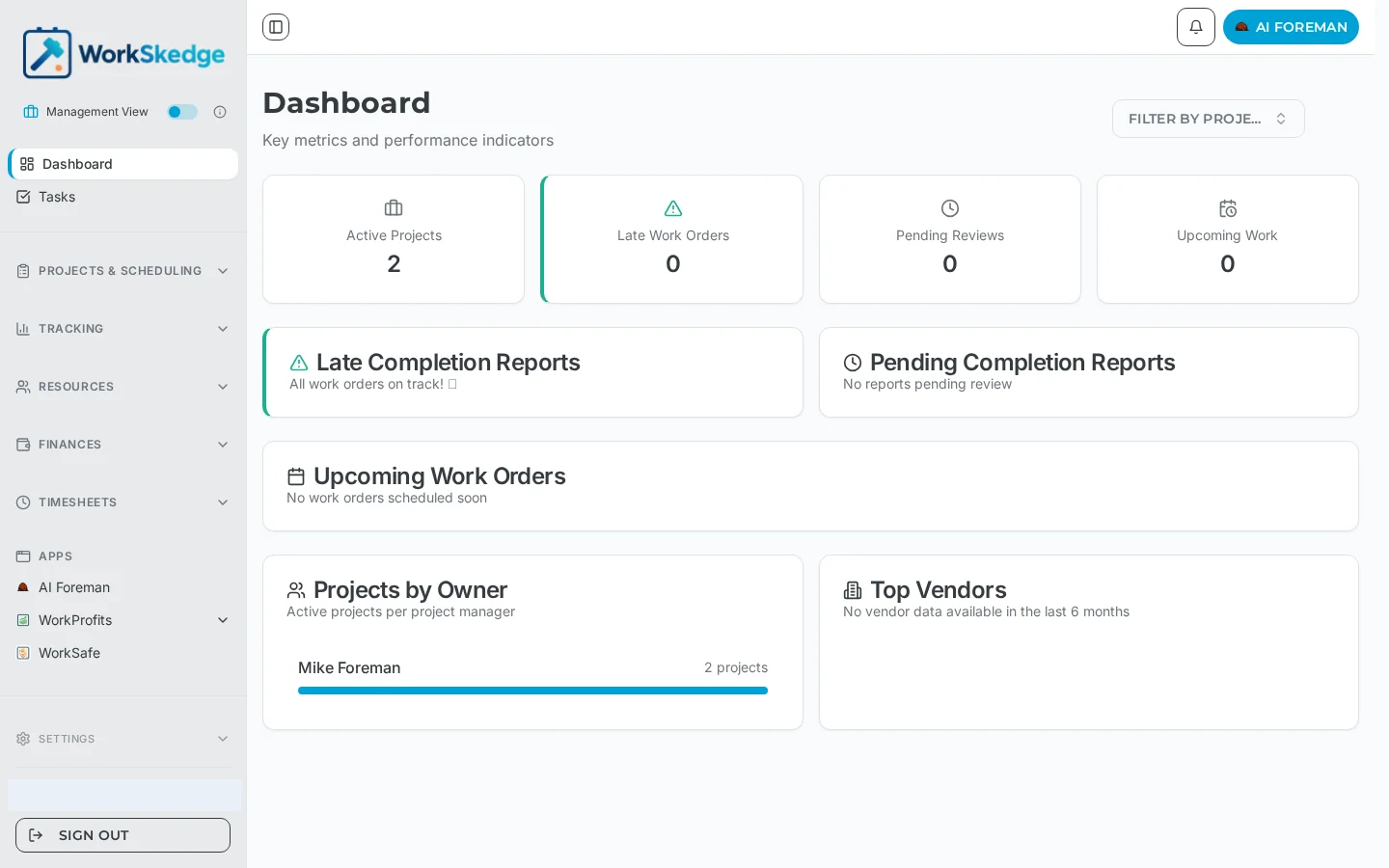
The main navigation
- Dashboard and Tasks — your operational summary and your personal task list.
- Projects & Scheduling — projects, work orders and the scheduling board.
- Tracking — reports and the day-to-day record of what happened on site.
- Resources — customers, employees and vendors.
- Finances — purchase orders, vendor credits and invoices.
- Timesheets — time entry, approvals and payroll exports.
- Apps — installed apps such as AI Foreman, WorkProfits and WorkSafe.
- Settings — everything configurable, grouped into four categories.
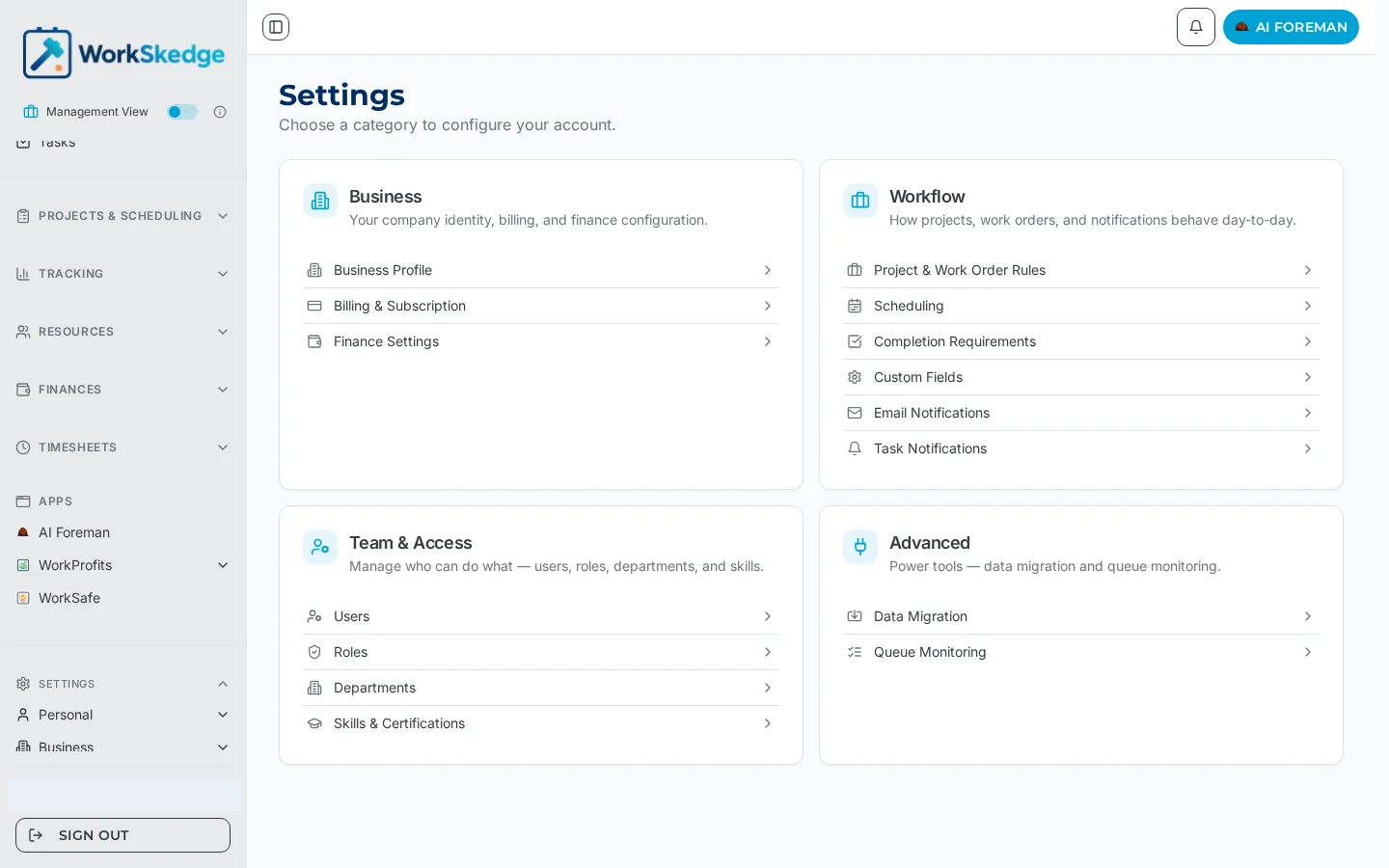
The Settings hub
- Business — Business Profile, Billing & Subscription, Finance Settings.
- Workflow — Project & Work Order Rules, Scheduling, Completion Requirements, Custom Fields, Email Notifications, Task Notifications.
- Team & Access — Users, Roles, Departments, Skills & Certifications.
- Advanced — Data Migration and Queue Monitoring.
Notes and limits
Switching a feature off preserves the existing data — you can turn it back on at any time. Advanced Dispatch and Subcontracts are off by default even on plans that include them.
Frequently asked questions
Why can I not see a menu item a colleague has?
Either your roles do not include it, or the feature is switched off or not in your plan. Roles filter navigation, and disabled features are hidden company-wide.
What happens to my data if I turn a feature off?
Nothing is deleted. The feature disappears from navigation, dashboards and the field worker app, and the data is there again when you turn it back on.
What does "Not in your plan" mean on a toggle?
The feature is not included in your current subscription tier. Upgrading in Billing & Subscription makes the toggle available.
Where do I change company-wide rules?
Settings > Workflow holds project and work order rules, scheduling, completion requirements, custom fields and the notification settings.
Where do I manage who can do what?
Settings > Team & Access covers users, roles, departments and the skills and certifications library.
Was this article helpful?
Still stuck?
Send us the article name and what you expected to happen.
Last verified August 31, 2026