
How do I add and manage vendors?
Short answer
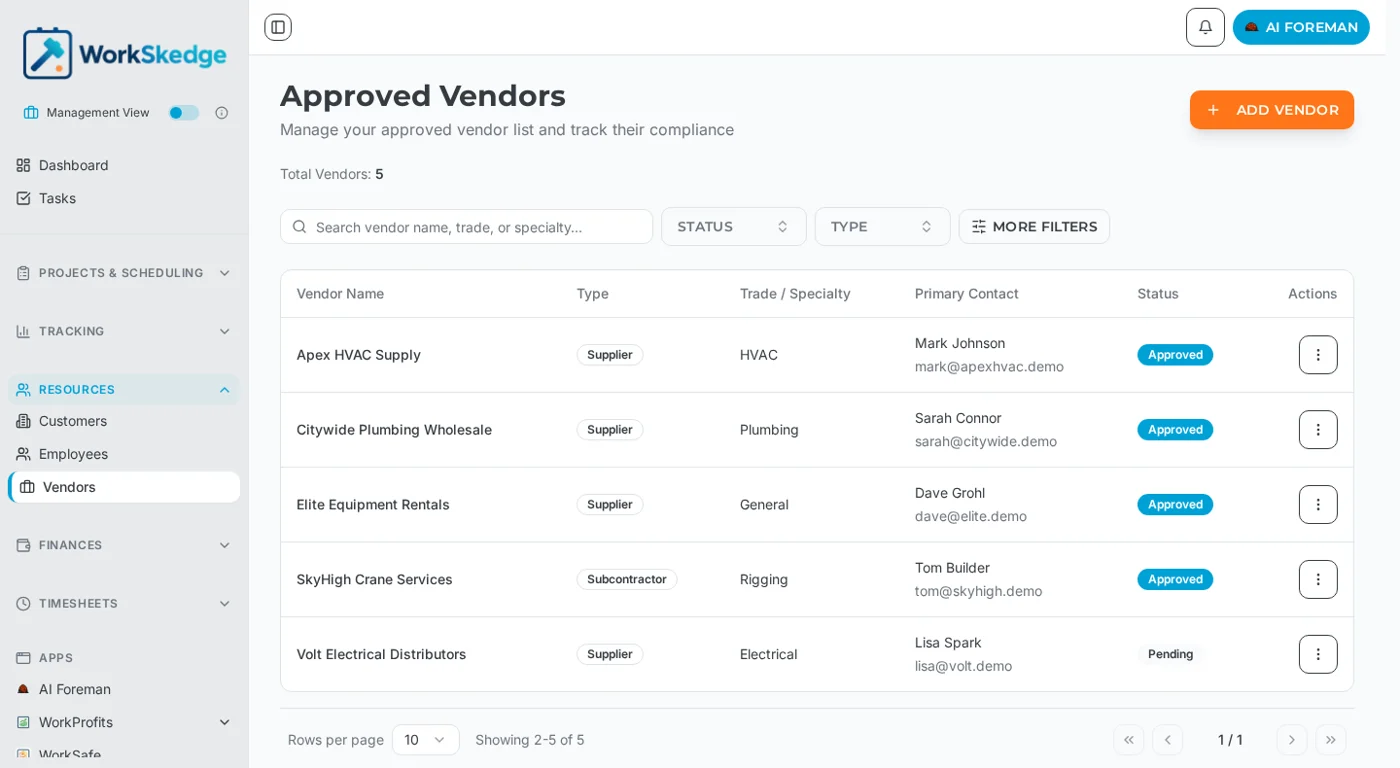
Go to Resources → Vendors and click Add Vendor. Name, trade/specialty, vendor type and primary contact are the essentials. New vendors start Pending and must be Approved before they can be assigned to work orders.
On this page
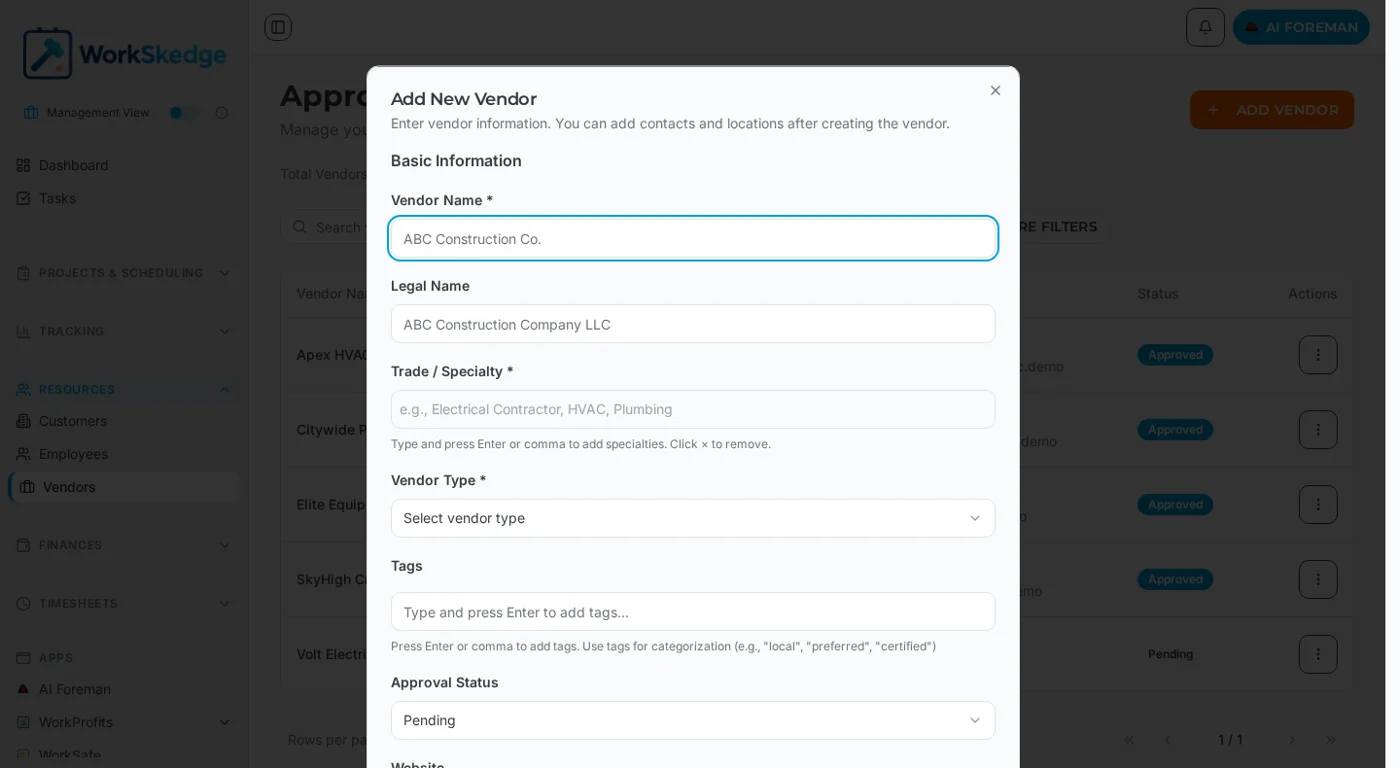
Your vendor list lives under Resources → Vendors. Click Add Vendor to create one: vendor name, trade/specialty and vendor type are required, plus a primary contact. A new vendor is created with approval status Pending — only Approved vendors can be assigned to work orders, so verification is part of onboarding rather than an afterthought.
Before you start
- Collect the vendor''s legal name, contact details, and their insurance and licence documents with expiry dates.
- Decide which vendor type applies — for example supplier, subcontractor, distributor, rental provider or professional services.
Steps
- 1Go to Resources → Vendors.
- 2Click Add Vendor.
- 3Enter the vendor name, legal name, trade/specialty and vendor type.
- 4Add the primary contact, and a backup contact if you have one.
- 5Add the address and regional coverage.
- 6Upload insurance, licence and compliance documents with their expiry dates.
- 7Verify the credentials, then set the approval status to Approved.
- 8Review expiry dates regularly and renew documents before they lapse.
What to fill in
- Basic information — vendor name (required), legal name, trade/specialty (required), vendor type (required), tags, website.
- Primary contact — name, phone, email. A backup contact can be added too.
- Location and service — address and regional coverage.
- Compliance — approval status, insurance expiry, compliance expiry, rating.
- Notes — internal comments only your team sees.
Trades are a dropdown of common specialties (Electrical, Plumbing, HVAC, Carpentry, Concrete, Roofing, Painting, Flooring, Drywall, Landscaping, Excavation, Masonry, Demolition, Insulation, Windows & Doors) and you can type your own.
Status flow
| Status | What it means |
|---|---|
| Pending | Newly added, awaiting verification — cannot be assigned to work orders |
| Approved | Verified and available for work orders |
| Expired | Credentials or compliance have lapsed; renew before assigning again |
The onboarding path is: add the vendor (Pending) → upload and review documents, insurance and licences → set the status to Approved and record the expiry dates → monitor those expiry dates and renew before they lapse.
The vendor record
Opening a vendor gives you three tabs:
- Details — contacts, address, website, trade, approval status and dates, rating, notes.
- Documents — uploaded compliance documents with type, name and expiry, plus upload, download and delete.
- Project history — past projects and work orders with performance notes.
Notes and limits
- The vendor list can be searched by name or specialty and filtered by trade, approval status, expiring soon and region.
- A vendor can be deleted only if it has no work orders attached; otherwise change its status instead.
- Vendors can be imported and exported by CSV from the vendor list.
Common errors
- Vendor missing from a work order or PO dropdown — its approval status is still Pending or has gone Expired.
- Cannot delete a vendor — work orders reference it. Mark it Expired to take it out of circulation while keeping the history.
Frequently asked questions
Why can I not assign this vendor to a work order?
Vendors with a Pending or Expired approval status cannot be assigned. Verify their documents and set the status to Approved.
What is required when adding a vendor?
Vendor name, trade/specialty, vendor type and a primary contact name, along with the approval status. Legal name, phone, email, backup contact, address, website and notes are optional.
Where do insurance certificates go?
The Documents tab on the vendor record. Each document stores its type, name and expiry date so you can chase renewals before they lapse.
Can I delete a vendor?
Only if no work orders reference it. Otherwise keep the record for history and change the approval status instead.
Can I bulk load my existing vendor list?
Yes — the vendor list has CSV import and export, and a CSV template to match the expected columns.
Was this article helpful?
Still stuck?
Send us the article name and what you expected to happen.
Last verified August 31, 2026