
How do I check equipment out to a work order and bill the usage?
Short answer
Check the asset out to the work order, capture the meter reading, then check it in with a closing reading. With auto-billing on and the asset linked to a rate, the check-in creates the usage record for you.
On this page
Equipment is assigned to work by checking it out to a work order, not to a project. Checkout records who took the machine, when, and the meter reading at the time. Check-in closes the loop and, where the asset is linked to a Price Book equipment rate, turns the meter difference into a billable usage record on that job.
Before you start
- The asset must be Active. A locked asset cannot be checked out.
- The asset must not already be checked out — one active checkout per asset.
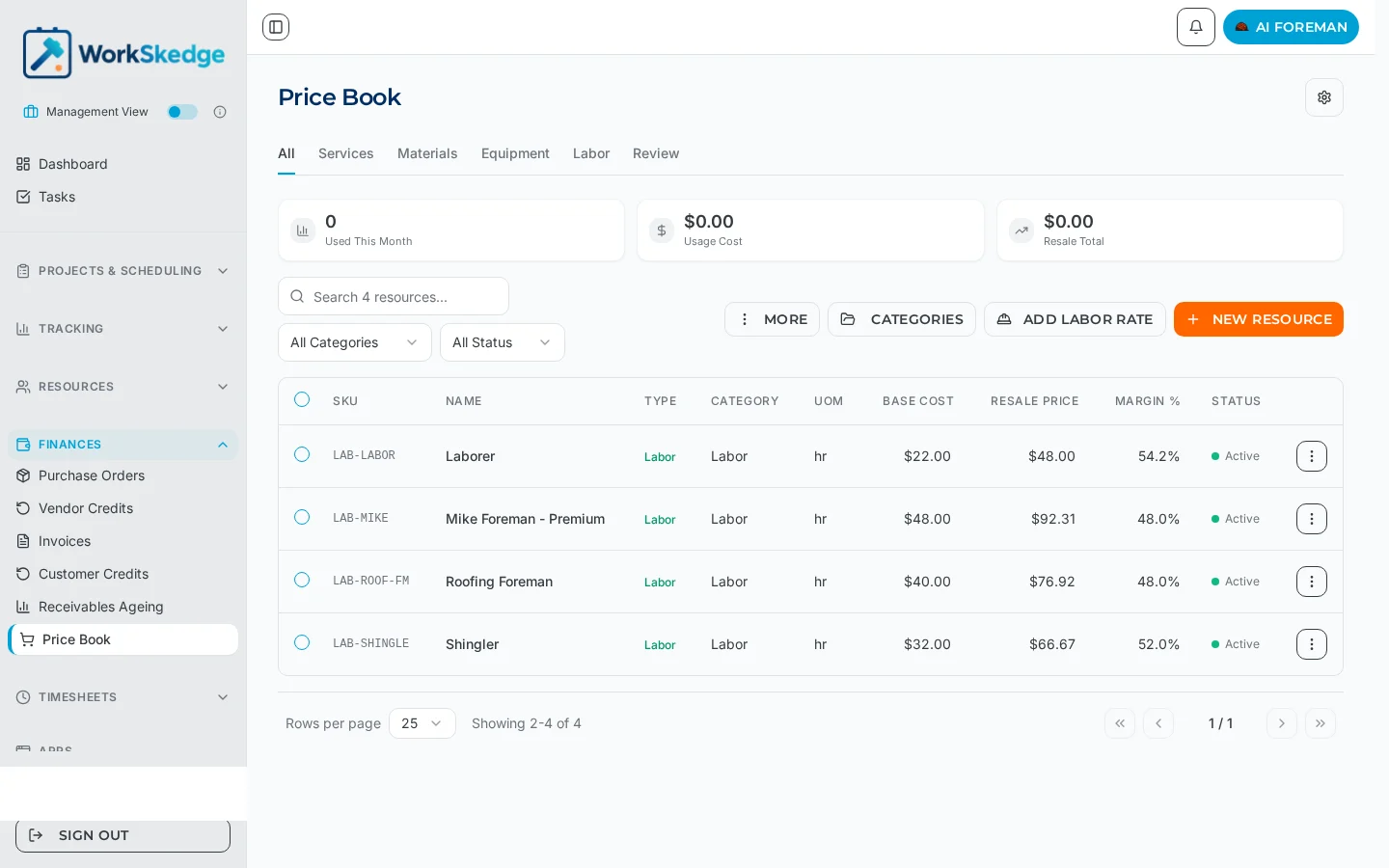
- To bill the usage automatically, the asset must be linked to an equipment resource in the Price Book.
- Checkout, check-in and readings are driven through the Equipment Ledger, so in practice you do them in the app that manages your equipment (for example Work Assets) or through the API.
Steps
- 1Confirm the asset is Active and not already checked out.
- 2Check the asset out to the work order, recording who took it.
- 3Capture the meter reading at checkout.
- 4Return the machine and check it in with the closing reading.
- 5Request auto-billing on the check-in so the usage record is created at the linked rate.
- 6Review the usage on the work order and invoice it with the rest of the job.
Status flow
Active + not checked out  ->  checked out to a work order  ->  checked in
                                                             (usage record if auto-billed)
How the billed quantity is calculated
- Quantity = closing reading minus the reading captured at checkout.
- If the asset's tracking mode is
none, the quantity is1per check-in. - The usage record stores a price snapshot from the linked resource, so later rate changes do not rewrite past jobs.
- No linked resource, or auto-billing not requested, means no usage record is created — the checkout still shows in the asset's history.
Notes and limits
- Auto-billing only fires when it is requested on the check-in and the asset has a linked Price Book resource.
- Both the checkout and the check-in reading are optional, but without them there is no meter difference to bill.
- You can see every asset that has been out to a job — current or historical — from the work order's equipment list.
- Checkout and check-in each raise an event, so an installed app can react in real time (for example flipping its own badge to Deployed).
Common errors
| What you see | Why | Fix |
|---|---|---|
| The asset cannot be checked out | It is locked, usually by a failed safety or service record | Resolve the service issue and set the asset back to Active |
| The asset is already assigned | There is still an open checkout | Check it in first, then check it out to the new work order |
| Check-in created no cost on the job | The asset has no linked Price Book resource, or auto-billing was not requested | Link the asset to an equipment rate and re-check the setting |
| Billed hours look too low | The checkout reading was never captured | Capture the reading at checkout so the difference is real |
Frequently asked questions
Can I check equipment out to a project instead of a work order?
No. Checkout is against a work order. Because the work order belongs to a project, the cost still rolls up to the project.
Can one machine be on two jobs at once?
No — one active checkout per asset. Check it in and back out again to move it between work orders.
How is the billed quantity worked out?
Closing reading minus checkout reading. Where the asset has no meter (tracking mode none), each check-in bills a quantity of 1.
Will changing my equipment rate later change past jobs?
No. Each usage record keeps a price snapshot from the moment it was created.
Where do I see which machines were on a job?
Query the work order's equipment; it returns every asset checked out to it, current and historical.
Was this article helpful?
Still stuck?
Send us the article name and what you expected to happen.
Last verified September 1, 2026